
Last Updated: 2026-08-19
Purpose
This article provides guidelines on how to get access to the Support portal and how to raise a support ticket.
How to Access the Support Portal
To provide product feedback or contact Outpost24 or Specops Software Support, you need a user account in our Jira ServiceDesk. Request access for yourself and colleagues by emailing support_access@outpost24.com with each user’s full name, email address, and your company name. You can also request access for a colleague in ServiceDesk if you already got access. There is no limit to the number of users who can request access to the ServiceDesk.
Once your account is created, you’ll receive an email with instructions to log in to Jira ServiceDesk. If you have any issues, contact us at support_access@outpost24.com.
Only current Outpost24 or Specops customers and partners with a signed, valid agreement are eligible to use the ServiceDesk support portal.
Shared Tickets within Organizations
We can create organizations so that users from your organization can view each other’s tickets. When requesting access, please indicate if you want an organization set up and which users should be included. You can still submit private tickets if needed, and you can be part of multiple organizations.
Service Level Agreement and Response Times
Full details on support services, including service description, severity definitions, and response times, are available in the complete Support SLA:
Outpost24 Support Service Description
Specops Software Support Service Description
For Premium Support, customers benefit from tighter SLAs, shorter response times, and increased attention to their support needs.
Using the ServiceDesk
Creating a Ticket
When logged into the ServiceDesk, you can request technical support, submit bug reports, request new features, and manage access for colleagues. The ServiceDesk is available to all Outpost24 users. Please pick the product that matches your request.
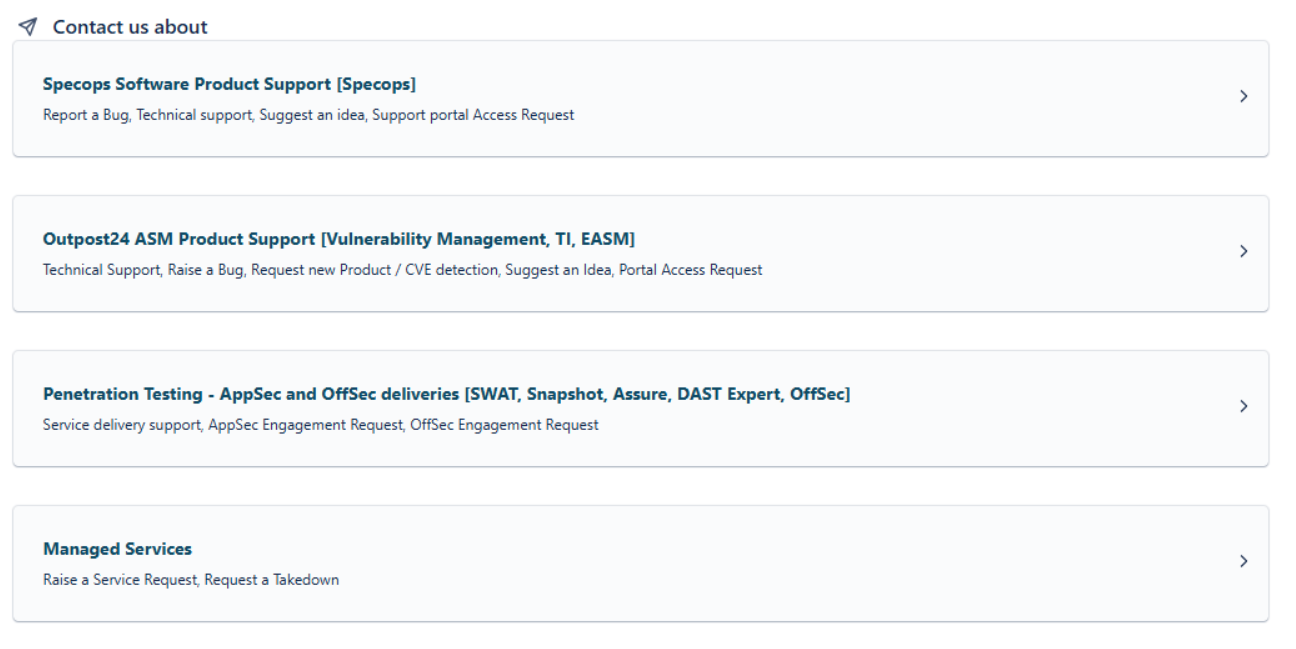
Select the issue type that best matches your request, such as technical support, bug report, or Suggest an Idea, and fill in the requested information.
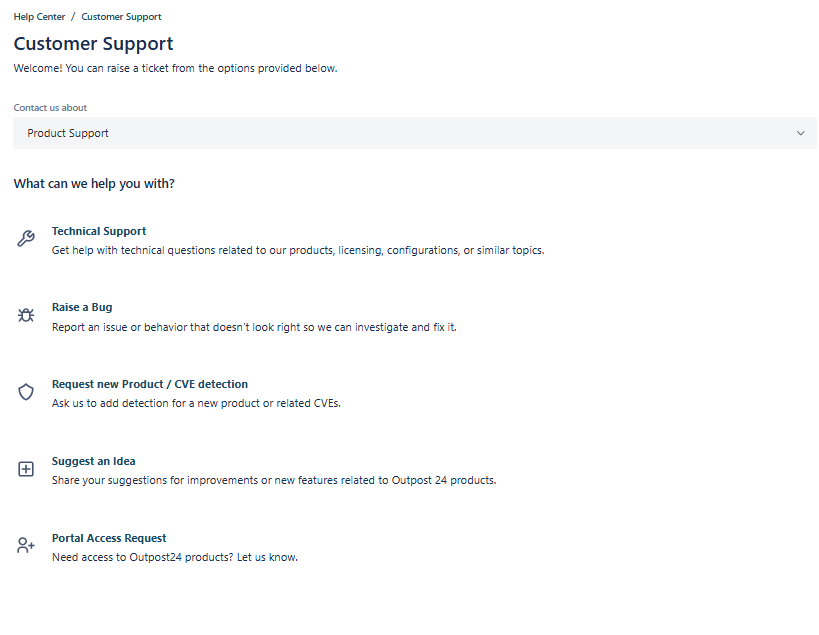
Choose the type that matches your request
When reporting an issue, please provide as much information as possible, such as product version if applicable, steps to reproduce the problem, any error messages or screenshots, and the impact on your operations. This helps our team resolve your issue more efficiently.
Severity definitions and response time SLAs can be found here:
Outpost24 Support Service Description
Specops Software Support Service Description
High- and Critical Severity Issues for Premium Support and Premium Partner Support
For high- and critical severity issues raised outside regular business hours, the 24/7 on-call support process is as follows:
-
Create a ticket through the support portal (Jira Service Management ) as usual, and set the severity to S1 or S2, depending on the criticality of the issue.
-
Call the phone number provided in the ticket for on-call assistance.
Our on-call team provides first-line support and has an established escalation process to ensure that the appropriate product experts are engaged where needed (Level 2 escalation). If an R&D (Level 3) escalation is required, this will be initiated as soon as possible.
Sharing Tickets
Sharing with the Whole Organization
When you create a ticket, you will see an option at the bottom to share it with your organization. If you belong to multiple organizations, all of them will appear in the list, but you will only be able to select one of them. If you wish to share the ticket with multiple organizations, please let Support know in the ticket.
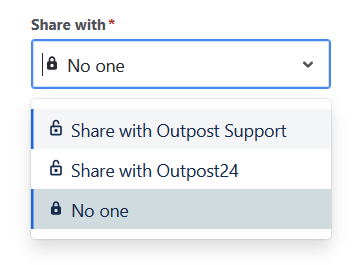
Request Participant
It is also possible to share a ticket with another user. To be able to share a ticket, they must be in the same organization as you and be a Service Desk user. Open an existing ticket, and you will see “Shared with” on the right. Simply press the plus icon to add an organization or a user to share the ticket with.
View All Tickets
In the upper-right corner, you can edit your profile and settings. Click on the icon and select “Requests”.
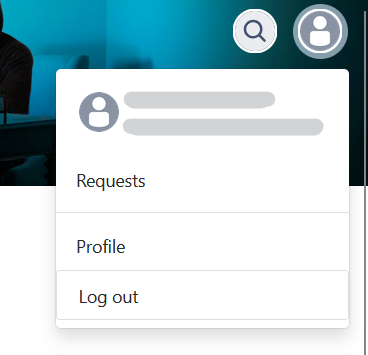
In the Requests view, you can filter your tickets by Status, reporter (including tickets you reported yourself, tickets where you are a participant, or tickets shared within your organization), or Request Type.
Ticket Updates and Notifications
You will receive email notifications for ticket updates and can respond either via the portal or directly by replying to the email. If you do not receive any notifications, please ensure you are allowing emails from Jira@outpost24.atlassian.net.
Note that new users must be added as ServiceDesk users to ensure proper workflow, adding them directly to the email thread will cause issues.
If a ticket is awaiting your feedback, you will receive two reminder notifications before it is automatically closed. You can reopen a closed ticket. For Specops-tickets there is a time limit after auto-closure; once this period has passed, you will need to create a new ticket.
Support Channels
|
SUPPORT CHANNEL |
AVAILABILITY |
DESCRIPTION |
|
Product Documentation
Specops Product Documentation
|
Always |
Access detailed product documentation, guides, and knowledge base articles to quickly find answers and best practices online. |
|
OP24 Support Portal
|
Always |
Cases submitted online are processed at regularly during Business Hours and prioritized according to problem severity. |
|
Email Support
|
Always |
If you have a ServiceDesk account, a ticket will be created automatically. |