
Last Updated: 2026-03-18
Technical Preview
This section is a technical preview of a feature that is currently under development. This feature is hidden behind a feature flag.
Purpose
This article describes the Agent Management.
Introduction
The Managing Agents feature provides centralized control over deployed agents that perform vulnerability assessments on endpoints. Agents are lightweight components installed on systems to collect security data and report findings to the platform. This allows administrators to view agents, monitor their status and version, synchronization status, and manage their lifecycle, including updating, configuring, and removing agents. It also supports validation of agent connectivity, verification of agent operation, and alignment with scan schedules defined in OUTSCAN. Through this interface, administrators ensure that agents remain active, correctly configured, and associated with the appropriate assets and targets, while also providing direct access to agent logs and tag management.
Organizations use this to maintain continuous visibility of systems that rely on agent-based scanning, especially remote or distributed endpoints. Centralized management ensures that agents operate correctly, communicate with the platform, and deliver accurate vulnerability data. This control reduces gaps in coverage caused by disconnected or misconfigured agents. Consistent agent management supports reliable scan execution, accurate reporting, and effective vulnerability detection across the environment.
Agent Management
The Agents view lists all asset-identifiers that are of the Agent type.
The same columns that are available in the Asset view are also present in Agent view, with an addition of columns that are specific to the agent type such as:
-
Agent version
-
Agent last synchronized
-
Agent retired
-
Agent id
-
Events
The Events column show platform issues that can occur on the agent such as:
-
Not call home: Agent did not call home in the last 7 days.
-
Retired: Agent marked as retired.
-
Not scan: The last scan of agent is more than 2 x scan recurrence (in scan configuration).
-
Outdated: Agent is not of the latest version.
-
Certificate expired*: The certificate that agent use to callhome has expired.
-
Not running*: Agent currently stopped.
-
No schedule*: Agent does not have any schedules to run agent scan.
-
No APIs*: Agent setting does not have server’s URL to callhome.
-
No recent upload*: Agent’s schedules have not uploaded any data in the last 7 days.
-
Failed to get config*: Unable to read the agent config file.
-
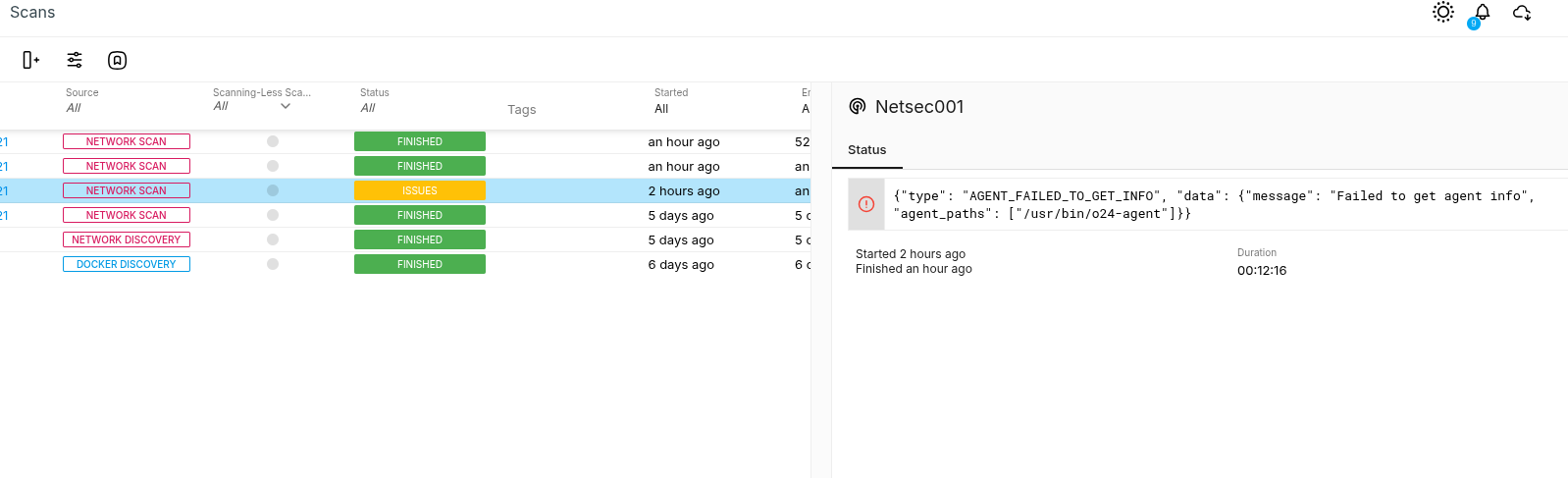
Failed to get info**: Unable to read the agent info file.
*: This can only be detected if the target that installed agent get scanned by Authenticated scan.
**: If that target got an agent installed and the info file cannot be read, the Scan status will be marked as “ISSUES”, with the following information:
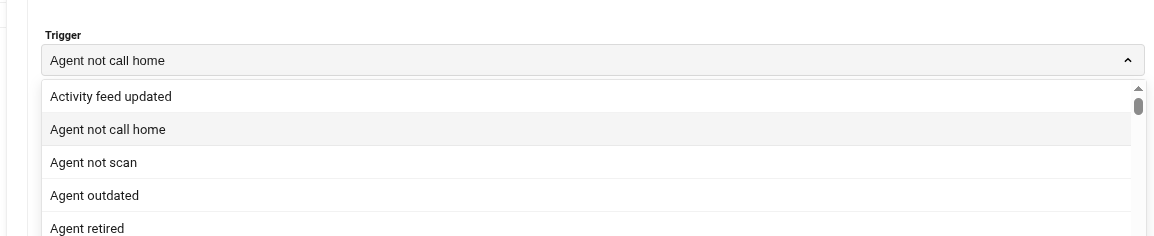
You can create event notification to notify when an agent have issues base on events:
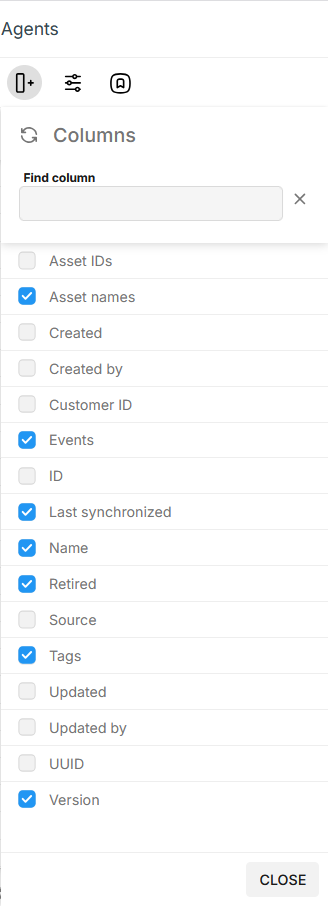
Columns that show Agent asset data within Agent view is also added such as:
-
Asset IDs: a list of ids of associated Agent assets, separated by commas and each id is a hyperlink that link to the asset in Asset view.
-
Asset names: a list of names of associated Agent assets, separated by commas and in alphabetically ascending order.
Logs
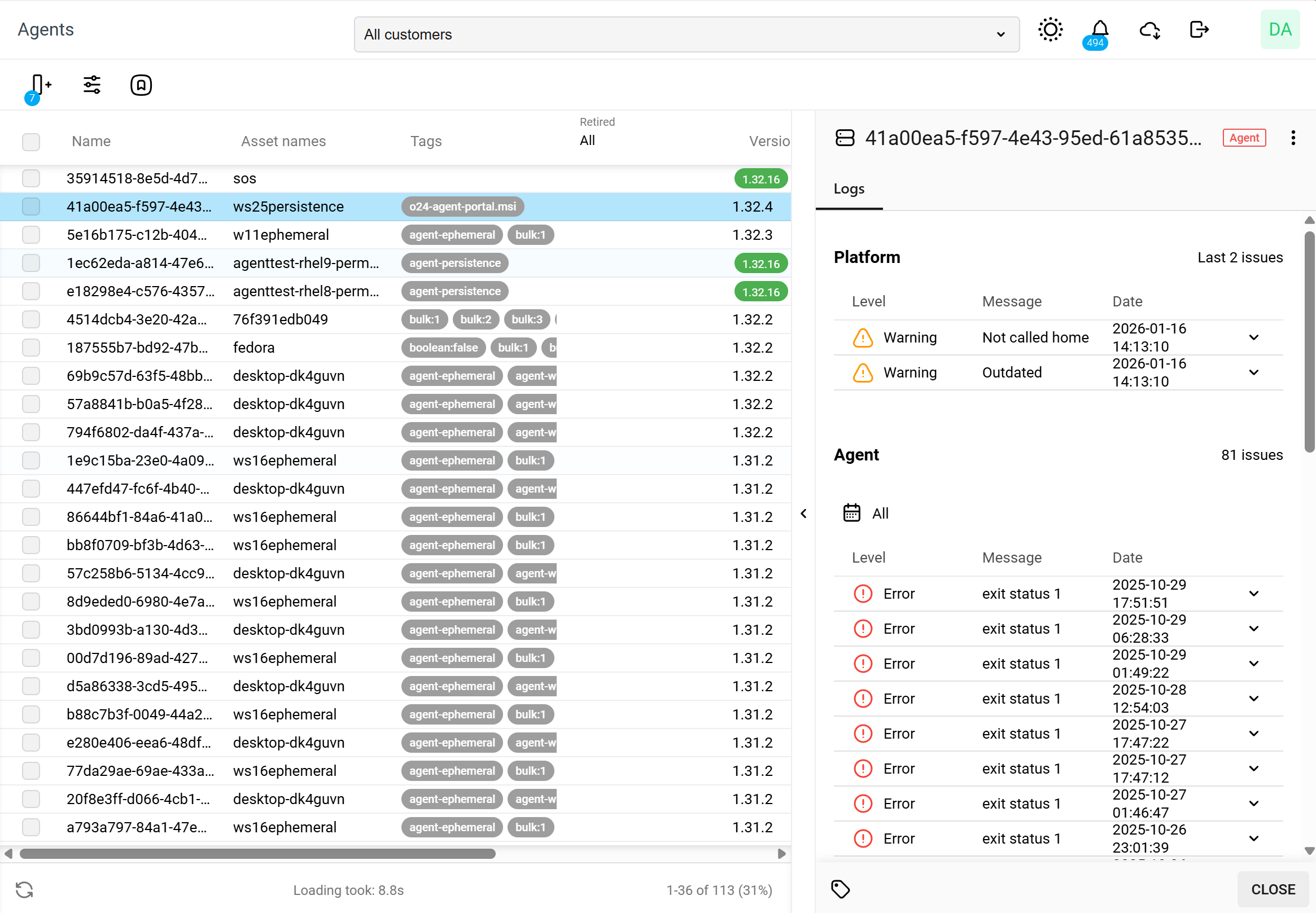
Selecting an agent provides a view with detailed logs for that Agent.
Managing Agents
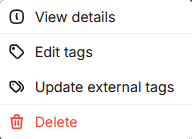
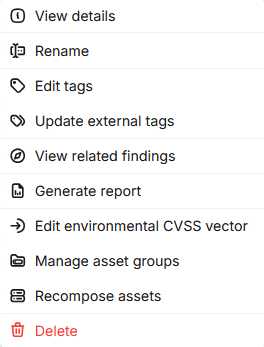
Right clicking on a agent provides a context menu where you can create, link, and remove tags in Edit tags, or to synchronize tag information using Update external tags. The Delete action deletes the agent and its related data.
Edit Tags
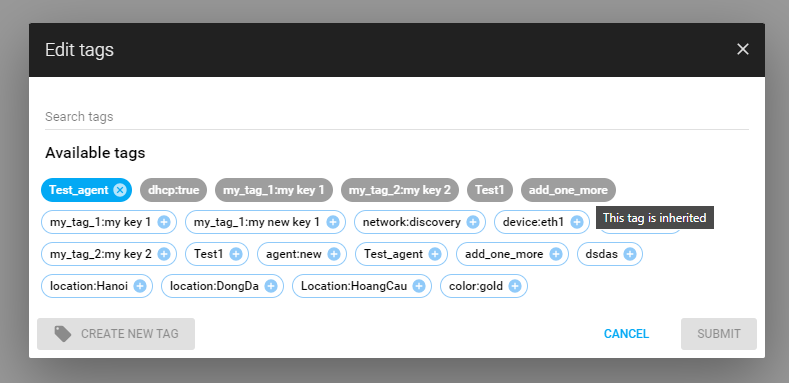
The Edit tags action displays a popup providing the user with the ability to link, or create and then link, tags to the Agent’s assets and in the Agent view, displaying these tags as "This tag is inherited".
Update External Tags
The Update external tags function synchronizes tag information from the assigned agent to maintain consistency and accuracy across systems. This function is used to manually trigger synchronization outside the scheduled intervals.
-
The MAC address is intentionally excluded from this operation.
-
If the Agent feature is disabled, the Update external tags option is grayed out and can not be selected. This setting can only be changed by an admin account.
Caution
When using the Update external tags function, tags are both added and removed based on the latest data for the assigned agent.
To update external tags for an asset with an agent in Agents view:
-
Navigate to Assets > Agents in the Main Menu.
-
Choose one of the following:
-
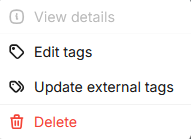
Right-click on an asset.
-
Select multiple assets, then right-click on one of the selected assets.
-
-
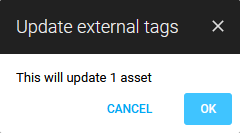
Click on Update external tags. A popup is displayed indicating how many assets with an agent are having their tags updated.
-
Click OK to update.
To update external tags for an asset with an agent in Assets view:
-
Navigate to Assets > Assets in the Main Menu.
-
Choose one of the following:
-
Right-click on an asset.
-
Select multiple assets, then right-click on one of the selected assets.
-
-
Click on Update external tags to update.
-
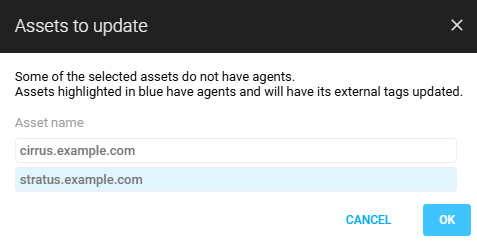
If any selected assets do not have agents, a display highlights the ones that have agents in blue and are having their tags updated, click OK to update.
-
Removing Tags from Agents
To remove a tag from the Agent, click on the X on the right hand side in the tag.

Related Articles
- Asset Groups
- Assets
- Automatic Asset Joining With Netsec
- Asset Discovery
- Using the Agent Info Command
- Updating the Agent
- Retrieving the Agent UUID
- Adding Agent Attributes
- Checking if Agent is Running
- Updating Agent Attributes
- Finding the Agent Version
- Retrieving Results From the Agent in OUTSCAN
- Discovering the Agent in OUTSCAN
- Removing an Agent from Windows
- Finding New Agents In OUTSCAN