
Last Updated: 2026-09-08
Purpose
This article describes engagement requests and how to interact with them to request, track, and manage AppSec testing engagements for your asset groups.
Technical Preview
This article is a technical preview of a feature that is currently under development. This feature is hidden behind a feature flag.
Introduction
This article provides an overview of engagement requests and how to manage them within your account. You can request new engagements through a guided wizard, track the status of their requests, and communicate with the AppSec team via comments.
Engagement requests enable you to call-off your AppSec licenses (SWAT, Snapshot, Assure, and DAST Expert subscriptions) directly in the Portal by submitting scoping information through a step-by-step wizard. Once submitted, you can monitor the progress of your requests and interact with the GhostLabs team if additional information is needed.
Starting a New Engagement
Requesting a new engagement can be done from three locations if you have available AppSec subscriptions:
-
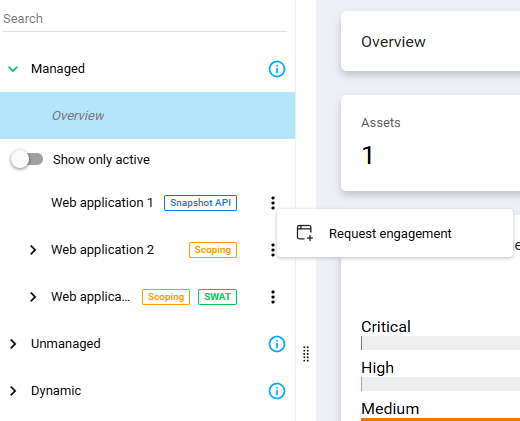
From the Asset Groups panel: Click the three dots

-
From the Subscriptions card in Asset Groups dashboard: Click the three dots

-
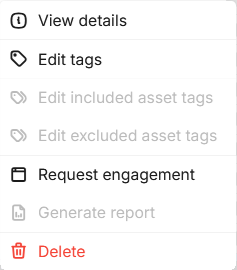
From the Asset Groups context menu and alternative header: Right click on an asset group in asset groups table and select Request engagement .
Filling in the Engagement Information
Once the Request engagement option has been selected, a wizard will guide you through the necessary information that needs to be provided.
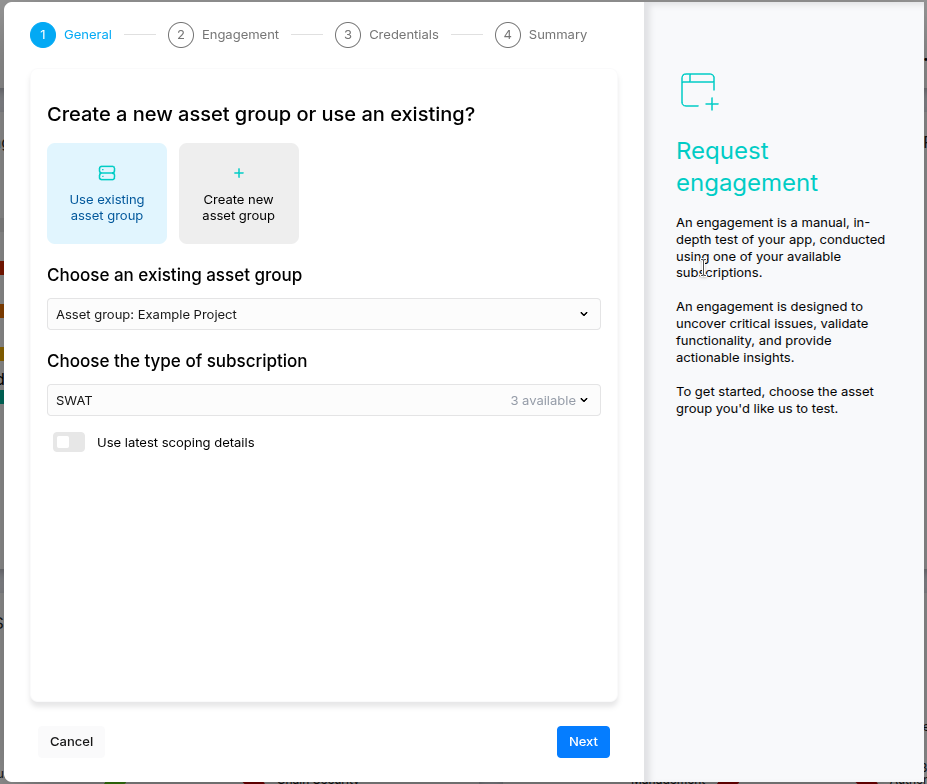
In Create a new asset group or use existing? you can select to:
-
Use an existing asset group meaning that users select an already available asset group in Portal that they want to call off engagements on.
-
Create a new asset group by submitting details of the application for the GhostLabs team to create a new asset group based on the given details and process the request on it.
The Use latest scoping details means the engagement they are creating will use the latest engagement details as placeholder for next steps (quicker and more convenient for customers).
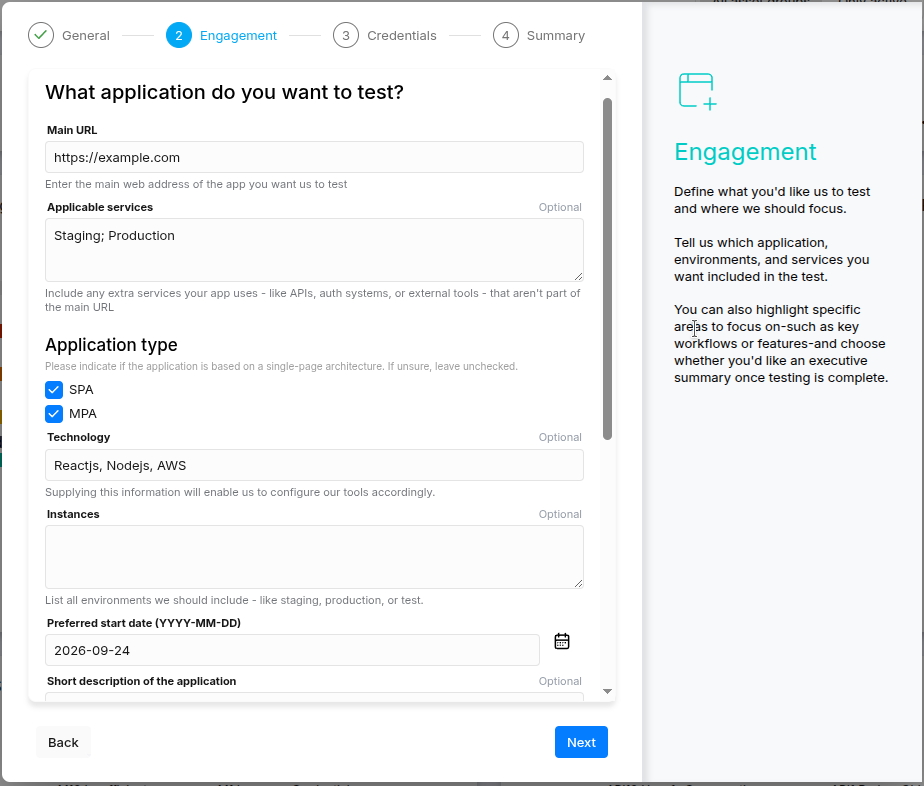
In the Application type - an application can be an SPA and an MPA at the same time. For example, an MPA can have views that are SPAs (client-side routing inside each page).
Include an executive summary once the engagement is completed means users will receive the summary report from the GhostLab team after the engagement has finished.
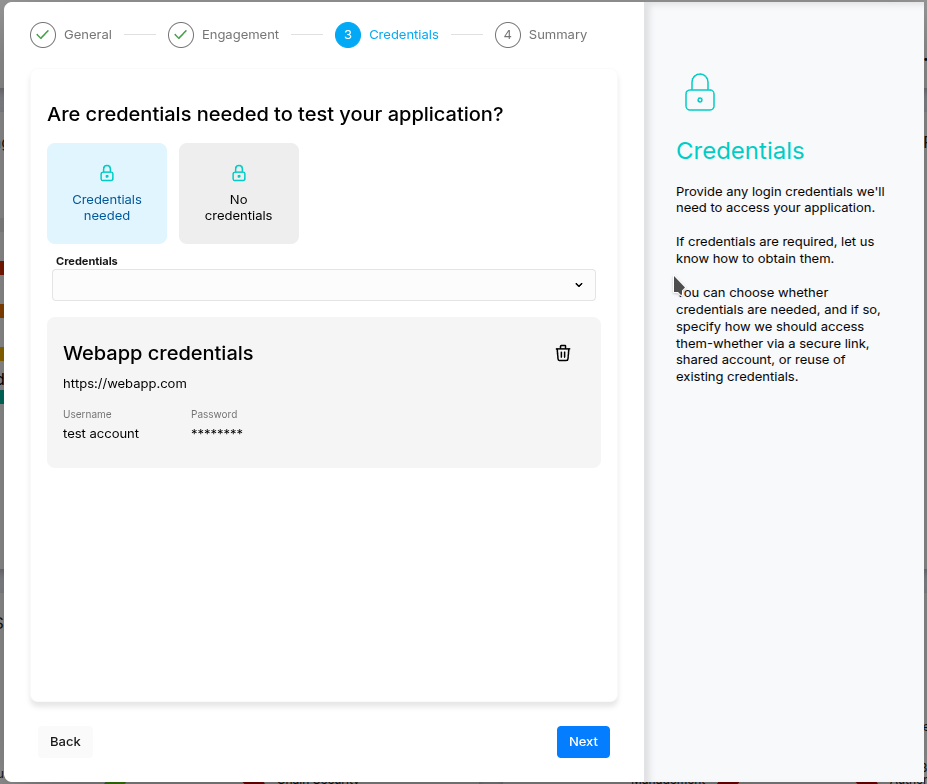
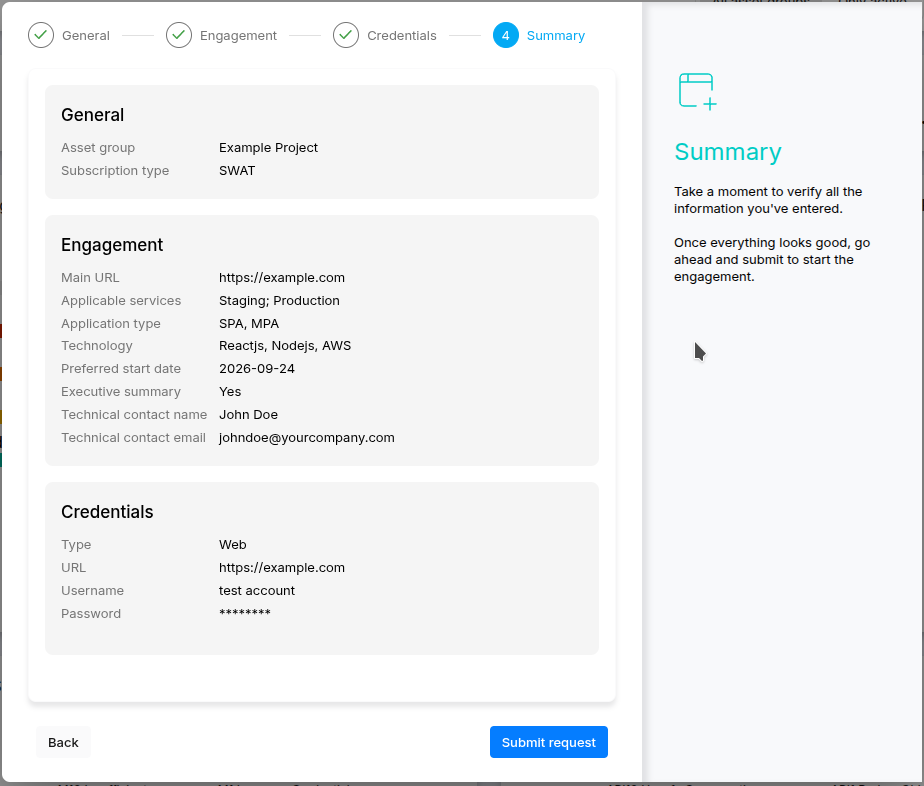
Once the wizard have been successfully finished, the asset group that was selected for the Requested engagement will have a new Scoping badge:
Viewing Your Engagement Requests and Tracking Status
The Engagement Requests card displays all your engagement requests in a list format.

Each request shows its current status, clicking on each engagement request item opens the details modal.
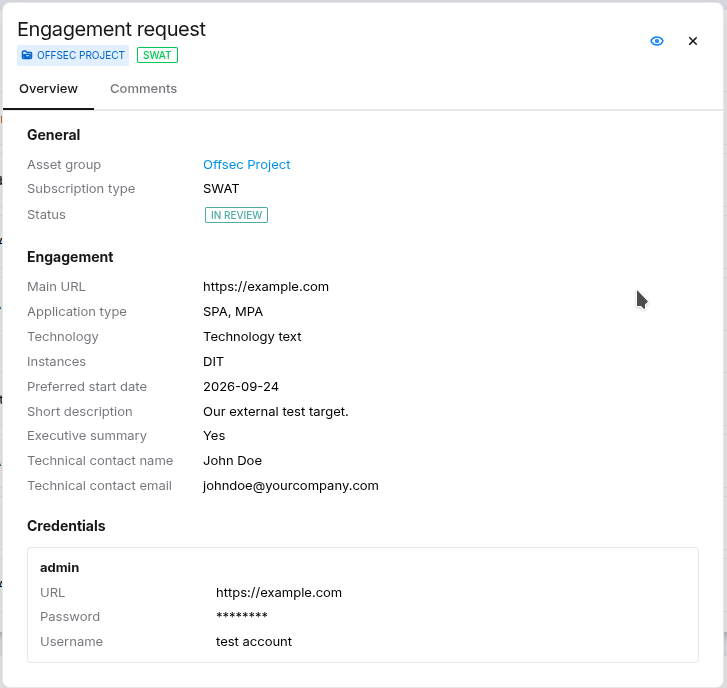
For further receiving notifications, click on the Watch icon and select Start watching action.
Related Articles
- Removing an Agent from Windows
- Discovering the Agent in OUTSCAN
- Installing a Linux Agent
- Check Connectivity to Agent Server
- PTaaS Workspace
- Checking if Agent is Running
- Agent Installation Introduction
- Automatic Asset Joining With Netsec
- Firewall Setup for Agents
- Engagement Requests
- Agent Call Home
- Asset Discovery
- Using the Agent Info Command
- Removing an Agent from Linux
- Retrieving the Agent UUID