
Last updated: 2025-09-30
Purpose
This article provides users with an overview of certificates in Informational findings.
Introduction
This article offers an overview of certificates in Informational findings, specifically targeting users with basic access to the OUTSCAN™/HIAB account. It details how certificates linked to specific assets are displayed, including a details view that provides information such as subject, issuer, and validity dates. Users can manage certificates by selecting actions like editing tags or marking them as false positives. Additionally, the document outlines the various columns available for viewing certificate information and emphasizes the importance of comments for communication with the Outpost24® Appsec team.
Certificate Overview
Requirements
It is assumed that the reader has basic access to the OUTSCAN™/HIAB account.
The Products view is visible without an Appsec subscription, but the view will be empty.
Certificates
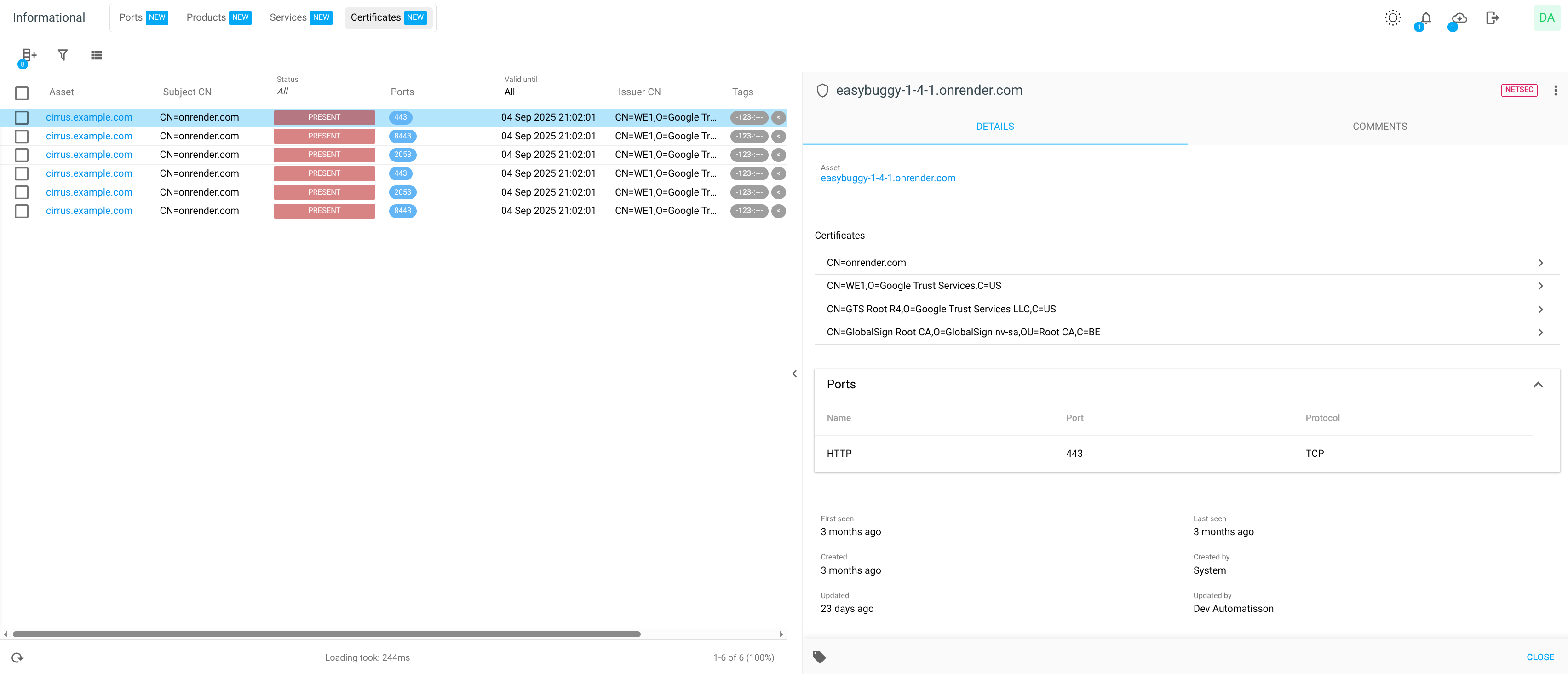
In Findings > Informational > Certificates, the certificates that are linked to a specific asset are listed.
When clicking on a certificate, a details view is displayed on the right side of the window.
Details
The Details tab shows more information about the selected certificate.
This includes certificate information such as subject, issuer, signature algorithm, serial number, key algorithm, key bits, valid from, valid until.
Ports
A list of all ports and information about them such as port name and port protocol.
Asset
The affected asset, and by clicking the asset name you are redirected to the asset view for more information.
First seen
When the certificate was first discovered on the specific asset.
Last Seen
When the certificate was last seen on the specific asset.
Created
The time since the certificate was created.
Created by
The name of the account that the certificate was created by.
Updated
The time since the certificate was last updated.
Updated by
The name of the account that the certificate was last updated by.
Comments
The Comments tab enables you to post comments on products, as well as sending messages to the Outpost24® Appsec team for review and response about the selected product.
Discussions about a finding are normally customer-internal. Only when eligible (via associated subscription) may a dialog between customer and the Outpost24 AppSec team be initiated.
Starting a Discussion
You can start a discussion about a finding:
-
Select a finding.
-
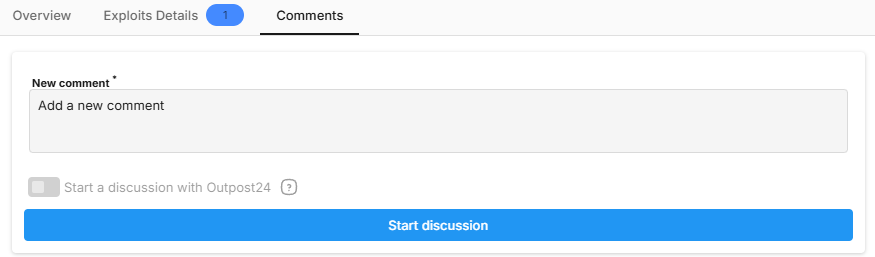
Click the Comments tab on the right side. The Comments tab shows all your ongoing discussions.
-
Add a new comment and click the blue Start Discussion button.
-
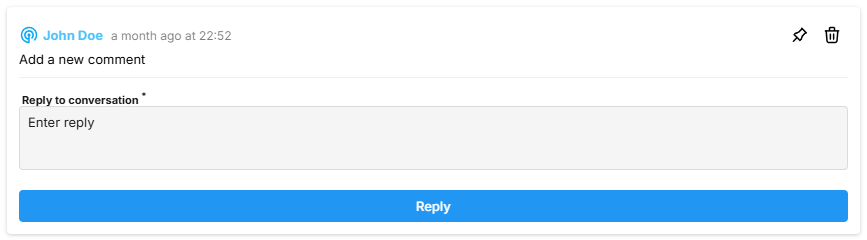
To reply to a discussion, enter your reply on the Reply to conversation line and click the blue Reply button.
Starting a Discussion with the Outpost24 AppSec Team
You can start a discussion about the findings with the Outpost24 AppSec Team for review and response.
-
Select a finding.
-
Click the Comments tab on the right side. The Comments tab shows all your ongoing discussions.
-
Toggle the Start a discussion with Outpost24 switch.
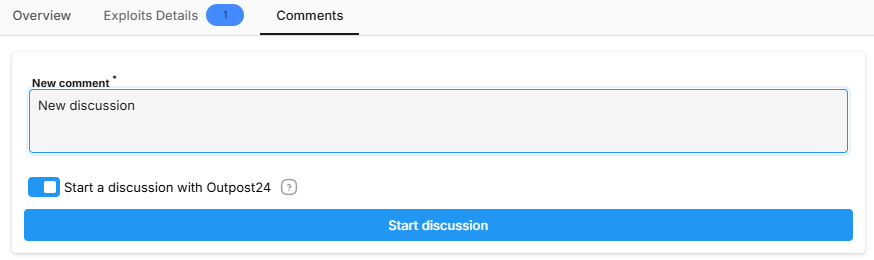
The Start a discussion with Outpost24 toggle is displayed if and when the underlying finding is eligible.
-
Add a new comment and click the blue Start Discussion button.
The comment is sent to the Outpost24 AppSec team. -
To reply to an ongoing discussion, enter your reply on the Reply to conversation line and click the blue Reply button.
When discussing with an Outpost 24 AppSec representative, the discussion card is marked clearly with a blue sign in the top left corner of the discussion card.
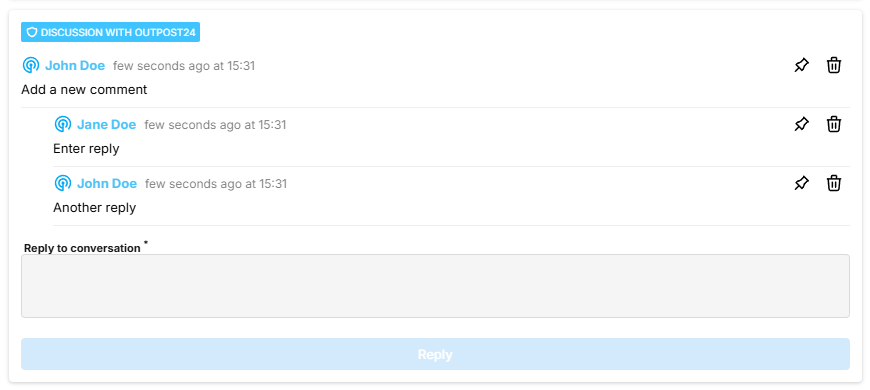
Pinning a Comment
To highlight a comment for a finding, click on the Pin icon to the right. This brings the comment to the top of discussions.
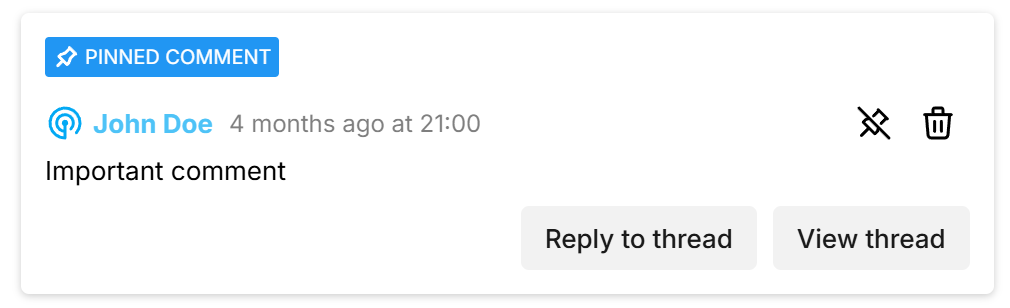
Use the Reply to thread and View thread buttons to quickly navigate to the discussion.
Deleting a Single Comment
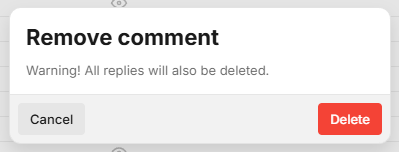
To delete a comment in a discussion, click on the Bin icon to the right. This removes the comment from the discussion.
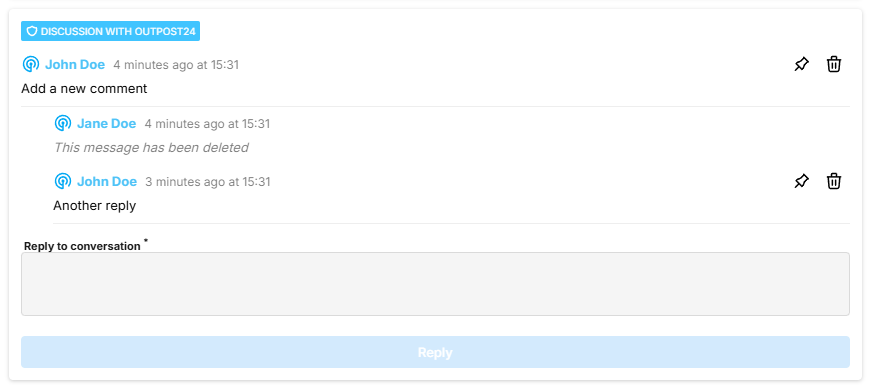
The deleted comment is marked with the text "This message has been deleted".
You can only delete your own comments.
Deleting a Discussion Tree
To delete the entire discussion tree, click on the Bin icon to the right on the first line in the card. This removes all conversation in the card.
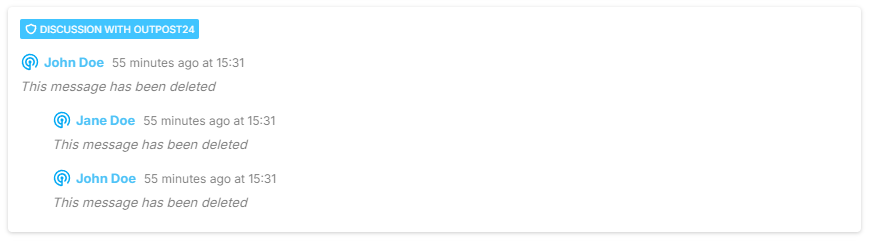
The deleted discussion and all replies is marked with the text "This message has been deleted".
Deleting pinned comments also unpins the comment.
Removing the top discussion will remove all the following replies in that discussion recursively.
If no comment is given, a default message/comment stating “Transitioned information status from <original status> to <new status> without user's comment." is saved as a activity log to assist with the reviewing of the finding’s history.
The customer can also transition certificates from other status like FALSE_POSITIVE or PRESENT.
Example:

Starting discussions with the Outpost24® Appsec team requires an active Appsec subscription.
To access existing comments, enable the comments column and click on the comment 
Manage Certificates
Select one or more certificates, and choose one of the actions that is displayed on the bottom bar:

Right-clicking a certificate or a selected group of certificates opens a menu where the same tasks can be performed.
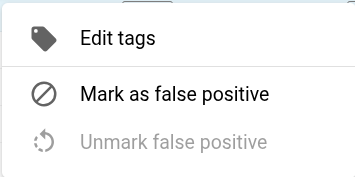
The possible user actions are:
-
Edit tags

-
Mark as false positive

-
Unmark false positive

Columns
By clicking the Column 
Select a specific column to know that information about a certificate. All selected columns are displayed in the Certificates tab. The available options are described below.
|
Option |
Format |
Description |
|---|---|---|
|
Age |

|
Shows how old the certificate is in regards to when then it was first discovered in a scan. |
|
Asset |
|
Name of the asset associated to the certificate. Could consist of among others:
|
|
Asset group IDs |
|
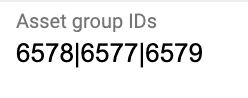
Group IDs attached to Asset that the Finding belongs to. See Vulnerabilities |
|
Asset ID |

|
The unique identifier of the Asset the certificate belongs to. |
|
Comments |

|
Number of comments associated to the certificate. |
|
Created |
|
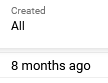
When the finding object was first created. Counted from when a scan first resulted in this finding or when the Appsec team pushed it. |
|
Created by |
|
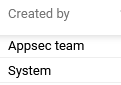
Who created it:
|
|
Created by ID |
|
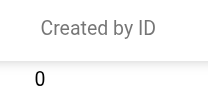
ID of the account that created the certificate |
|
Customer ID |
|
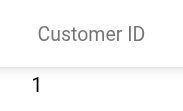
ID of the customer |
|
First scan ID |
|
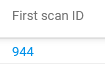
ID of the scanlog entry this certificate was first found in. |
|
First seen |

|
Date shows when the certificate was first discovered on a specific asset during recurring scans. When not found in a scan, the first seen date resets. |
|
ID |

|
Unique identifier of the certificate. |
|
Issuer CN |
|
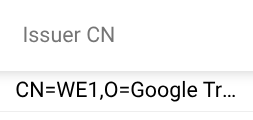
Common name of the issuer. |
|
Key algorithm |
|
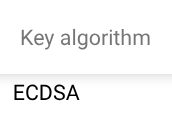
Algorithm for the certificate key. |
|
Key bits |
|
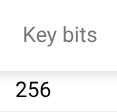
Size of the certificates key. |
|
Last scan ID |
|
This is the last (latest) scan this certificate was found in. |
|
Last seen |
|
Date shows when the certificate was last seen on a specific asset. Checks if the certificate is present in recurring scans. If it is not found in one scan, the last seen date resets. |
|
Match chain ID |
|
Internal identifier for the certificate chain. |
|
Match IDs |

|
Reference ID to the scanners raw data output that the certificate is generated from and contains in depth information such as vhost, port, pattern, url, product versions, and so on. |
|
PEM |
|
The certificate in PEM format. |
|
Port names |
|
List of all port names (HTTP, SSH) |
|
Port protocols |
|
List of all port protocols (TCP) |
|
Ports |
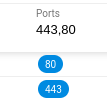
|
Displays ports the certificate is found on. Hovering mouse on the port chip displays the port number and protocol as tool-tip. 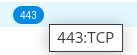
Number filter is applicable on the column. |
|
Seen last scan |
|
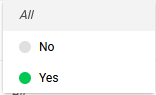
Boolean value that shows if the certificate was detected during the last scan of the linked asset. |
|
Serial number |
|
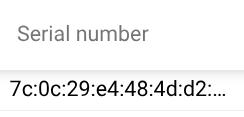
The serial number of the certificate. |
|
Signature algorithm |
|
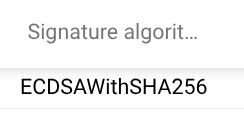
Algorithm the certificate was signed with. |
|
Source |


|
Which source scanner or product type does the certificate originate from. |
|
Status |


|
Indicates the different statuses for a certificate. Can be marked as:
|
|
Subject CN |
|
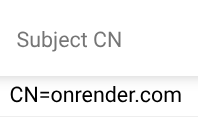
Common name of the certificate. |
|
Tags |

|
Displays the available tags associated with the certificate. |
|
Updated |

|
Timestamp of when the certificate was last updated at all for any reason, system- or user-initiated. |
|
Updated by |

|
Who did the last updating action, system, user, or AppSec team and so on. |
|
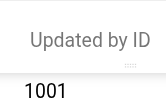
Updated by ID |
|
ID of the account that did the last updating cation |
|
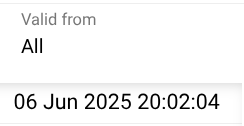
Valid from |
|
Time from which the certificate can be used. |
|
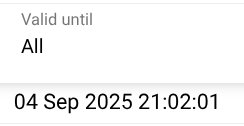
Valid until |
|
Time until which the certificate can be used. |
Related Articles