
Last Update: 2026-04-01
Purpose
This article describes how set up the WinRM credentials in the Portal.
Introduction
WinRM Credentials enable secure authenticated scanning of Windows-based assets over the Windows Remote Management (WS-Management) protocol, allowing security teams to configure domain-specific authentication details such as roles, domains, usernames, passwords, and CA certificates within the Credentials management interface. By enabling WinRM Credentials, organizations can perform deeper, more accurate vulnerability assessments by collecting system configuration and patch state directly from the host with the appropriate permissions, rather than relying solely on unauthenticated network probes. This feature improves coverage of Windows endpoints and servers, strengthens compliance reporting, and enhances overall risk management by providing reliable, privilege-aware visibility into WinRM-exposed systems in environments where remote management is already operational and governed by policy.
Adding Credentials
-
Log in to OUTSCAN. See the Logging in to the portal article on how to access the Portal.
-
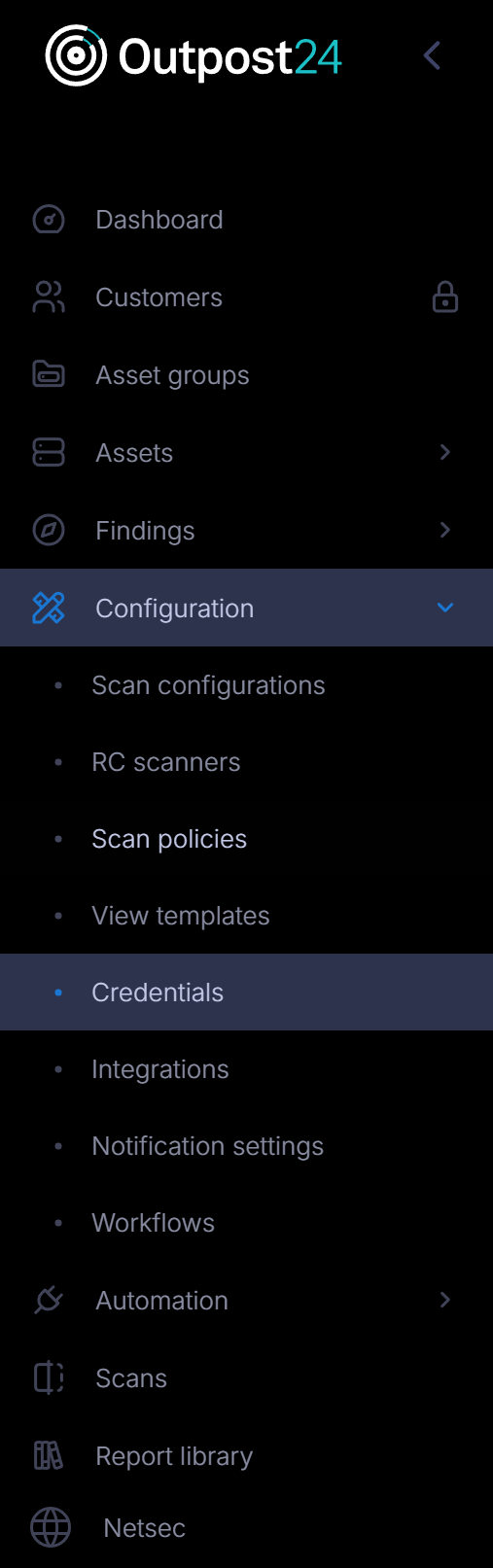
In the Portal menu view, click the Configuration → Credential.
-
Click the Create credentials button to open the create credentials form.

Set up WinRM Credentials
-
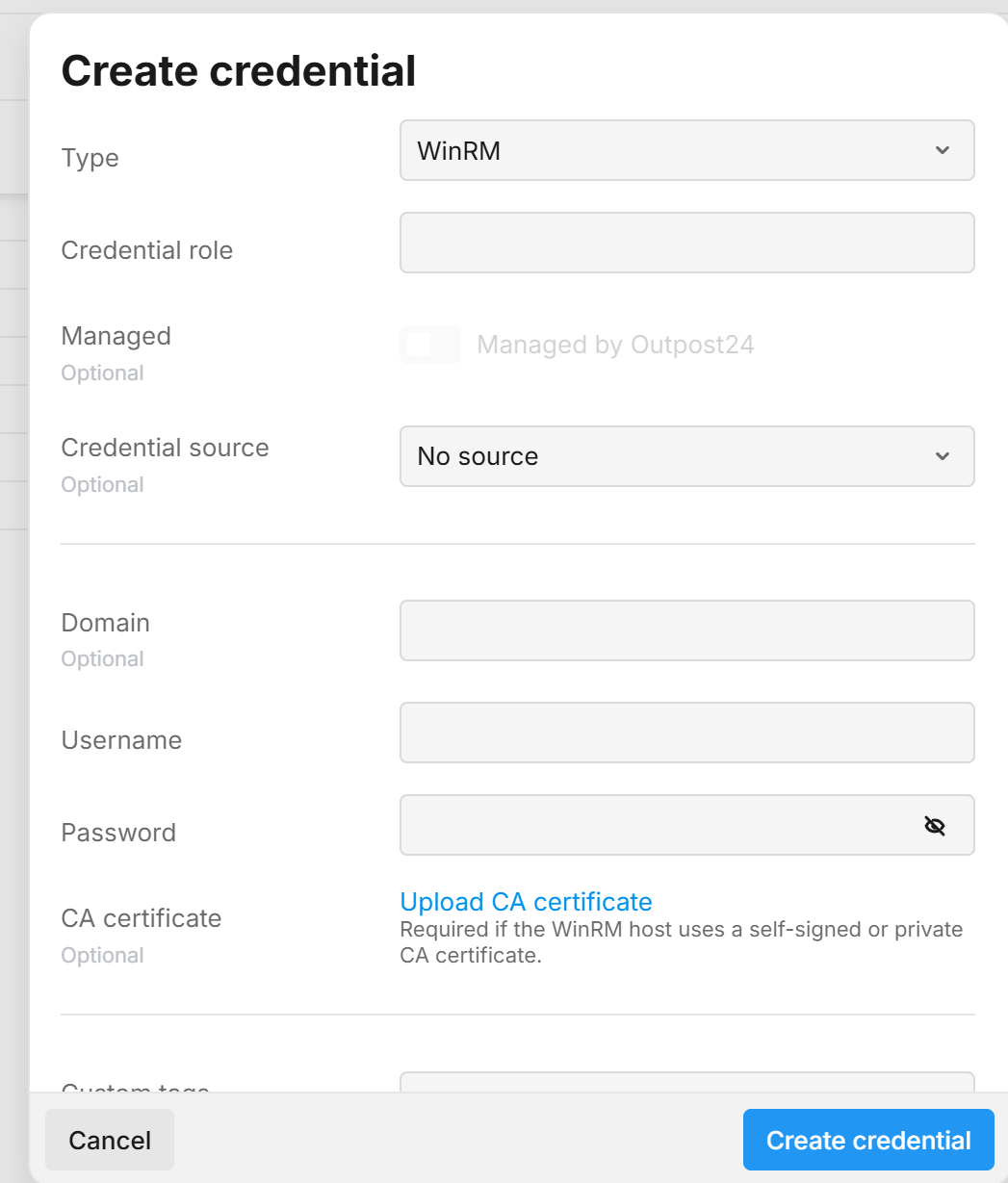
In the drop-down menu select WINRM.
-
Enter a Role.
-
Enter a Domain.
-
Enter a Username.
-
Enter a Password.
-
Upload a CA certificate.
-
Click the blue Create credential button.
Related Articles
- Account Settings
- Generate Azure Credentials
- Google Cloud Platform Credentials
- Microsoft Azure Credentials
- ADFS Identity Provider Configuration
- SSH Credentials
- Docker Credentials
- Auditing Guide
- Amazon Web Services Credentials
- VMware vSphere Credentials
- Two Factor Authentication
- Account
- Generate AWS Credentials
- Basic Credentials
- SMB Credentials