
Last updated: 2026-08-10
Purpose
This article describes how to create, configure, and use Ignore Lists in the Common Portal.
Introduction
Ignore Lists allows users to define reusable exclusions for assets and asset identifiers that should not be scanned. They help prevent scanning of sensitive or out-of-scope systems by excluding assets, individual identifiers, IP ranges, CIDR blocks, or hostname patterns from network scans.
Ignore lists can be configured as Global, Default, or Normal, allowing organizations to enforce organization-wide exclusions, provide default exclusions for new scan configurations, or define scan-specific exceptions. Each list also supports configurable behavior to either ignore only the matching identifier or the entire asset, with the option to extend exclusions to related identifiers through identifier resolution.
The article explains how to create and manage ignore lists and their entries, associate ignore lists with network scan configurations, and describes how ignore rules are evaluated during scan dispatch. It also covers how excluded assets and identifiers are recorded in scan logs, providing visibility into what was ignored and the reason for each exclusion.
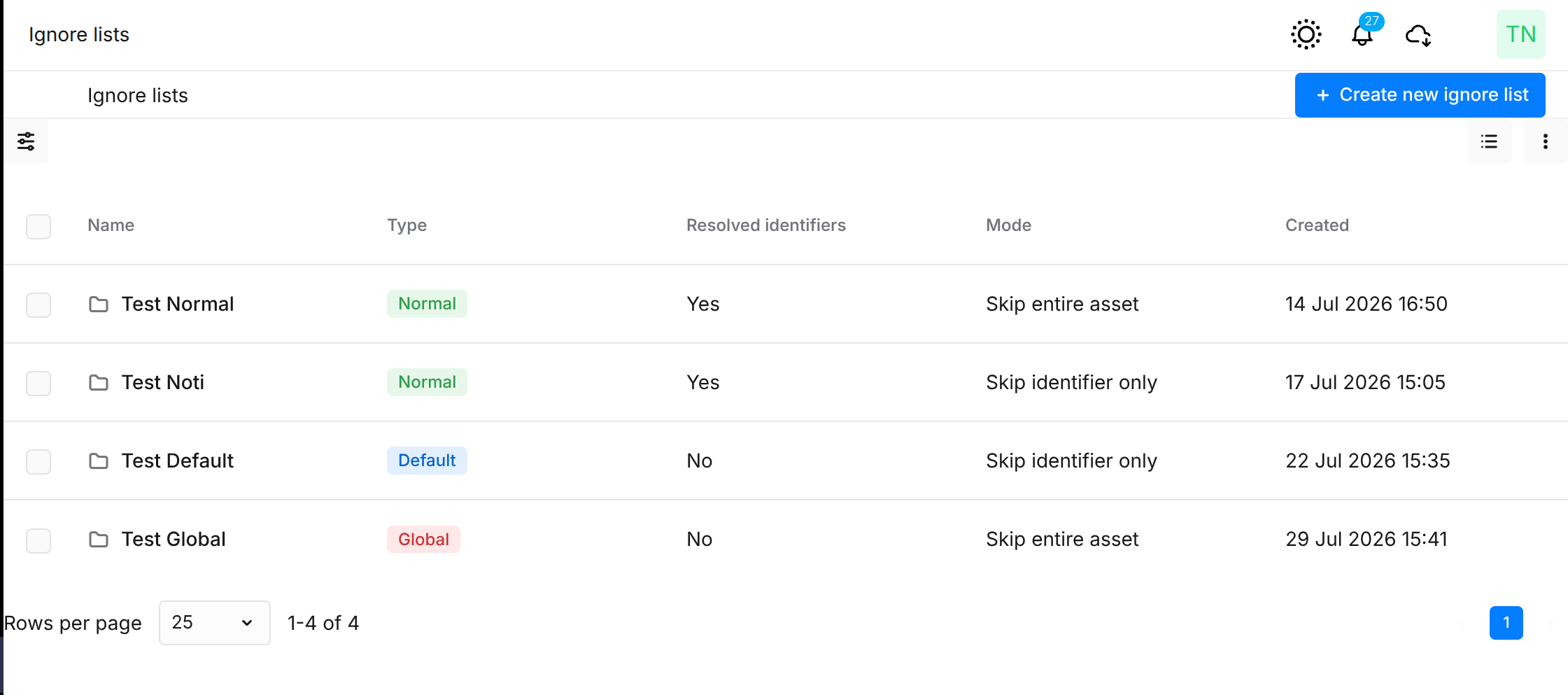
Create Ignore List
To create an Ignore List:
-
Go to the Ignore Lists view, then click on the blue Create new ignore list button at the top right corner.
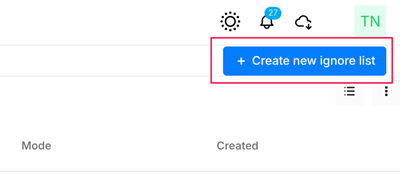
-
Enter the required information:
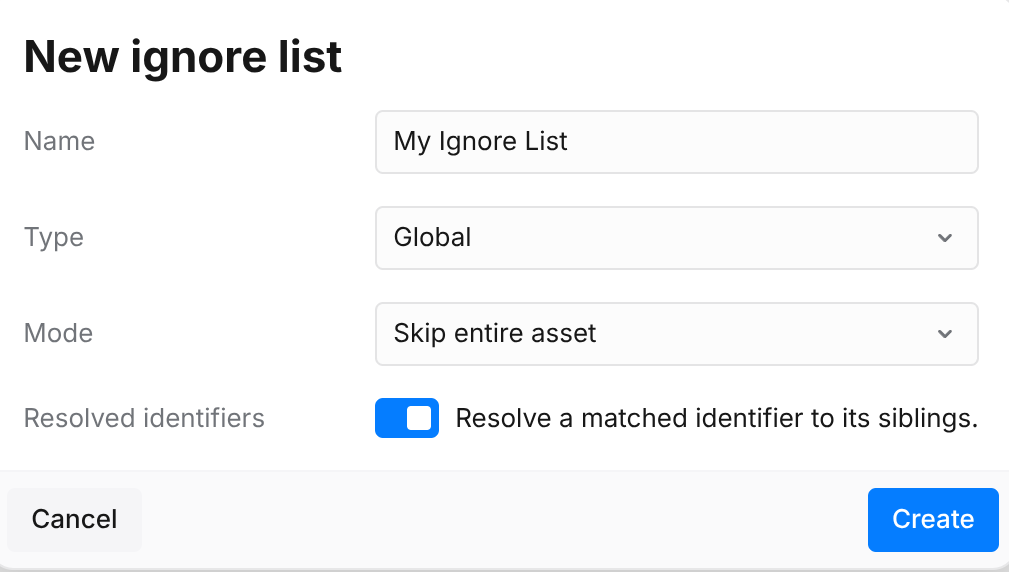
Configure the following fields:
-
Name – A user-friendly name for the ignore list.
-
Type – Determines how the ignore list is applied:
-
Global – The ignore list is automatically applied to every network scan for the customer.
-
Default – The ignore list is automatically added to newly created network scan configurations but can be removed from individual configurations.
-
Normal – The ignore list is only applied to scan configurations to which it has been explicitly linked.
-
-
Mode – Specifies what is excluded when an Ignore List entry matches a target:
-
Skip identifier only – Only the matching asset identifier is excluded from the scan.
-
Skip entire asset – The entire asset, including all of its identifiers, is excluded from the scan if any identifier matches.
-
-
Resolve identifiers – Specifies whether related asset identifiers should also be excluded when a match occurs. When enabled, a match on a hostname or cloud identifier also excludes any associated IP addresses, and vice versa. This prevents an asset from being scanned through an alternate identifier.
Creating from Assets
Ignore Lists can also be created directly from the Assets view:
-
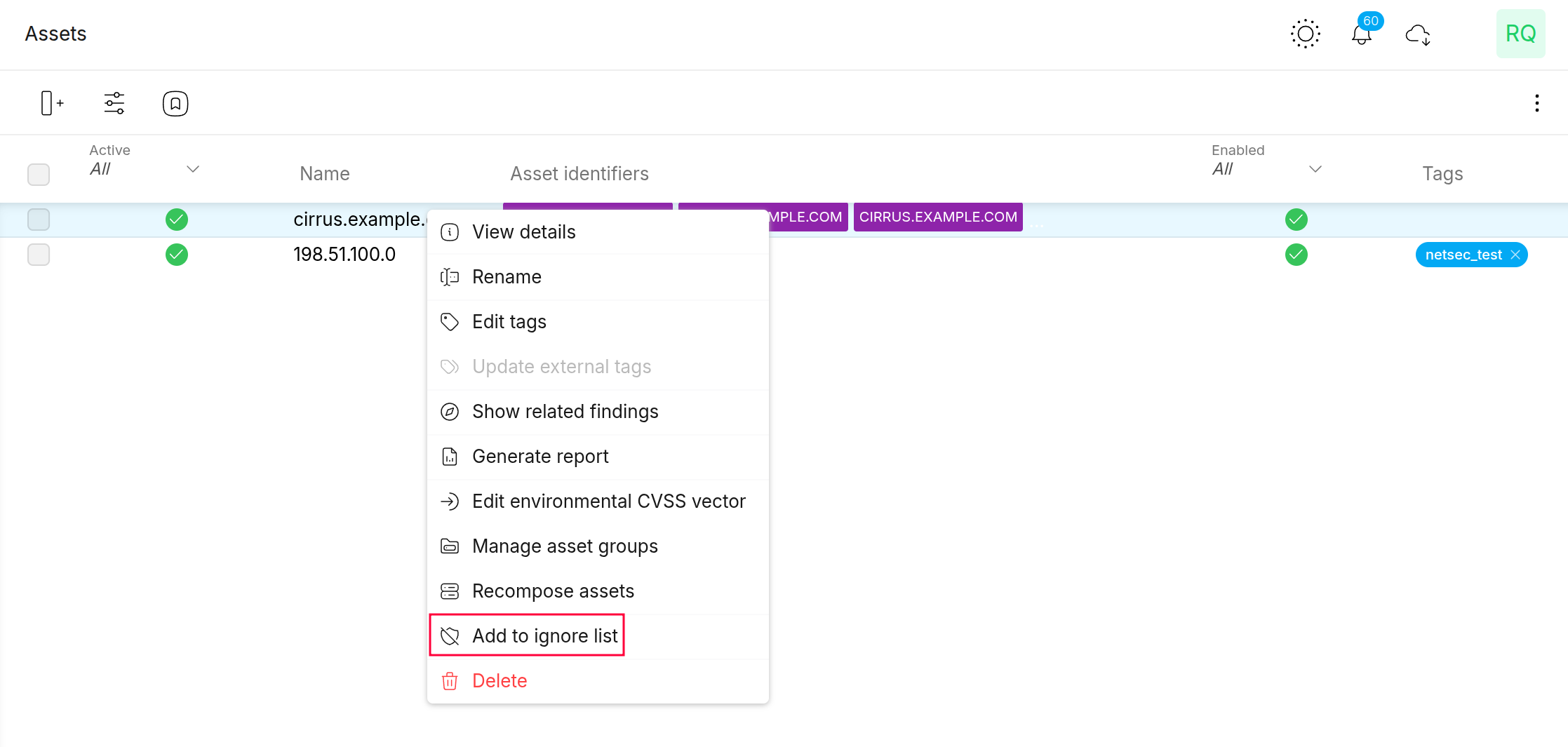
Right-click an asset to open the context menu and select the Add to ignore list option.
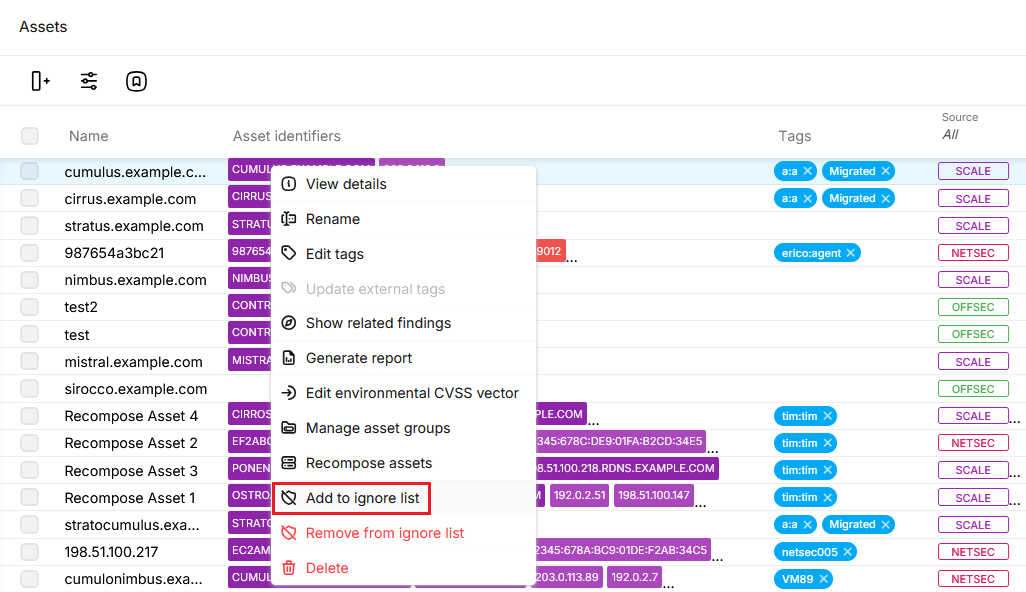
-
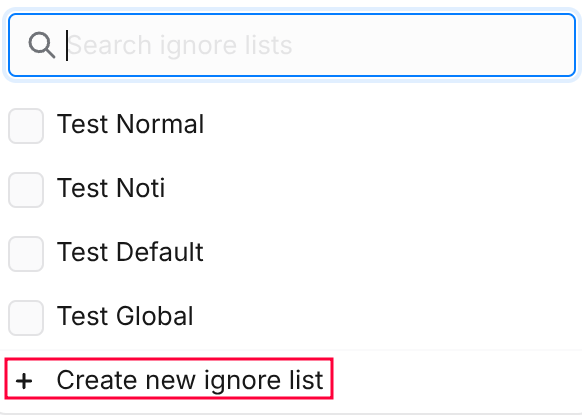
Then click on Create new ignore list:
-
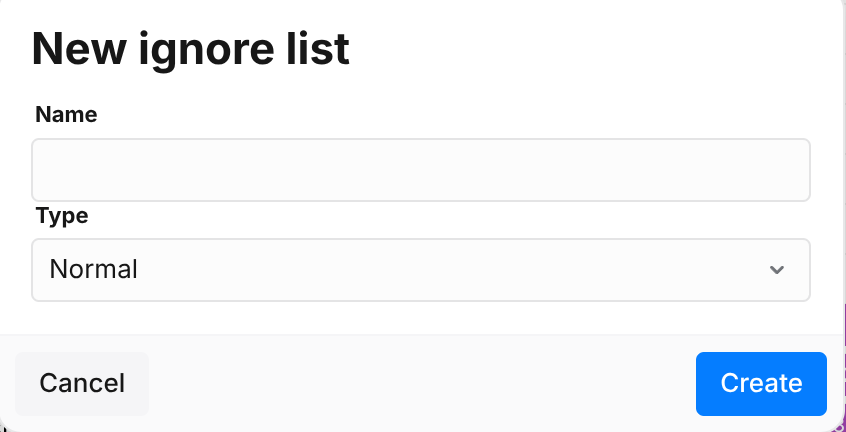
Add a Name and select a Type. When creating a list like this, the mode will be Skip identifier only and Resolve identifiers will be false by default.
-
In the Ignore Lists view, right-click an Ignore List item to Open, Edit, or Delete it:
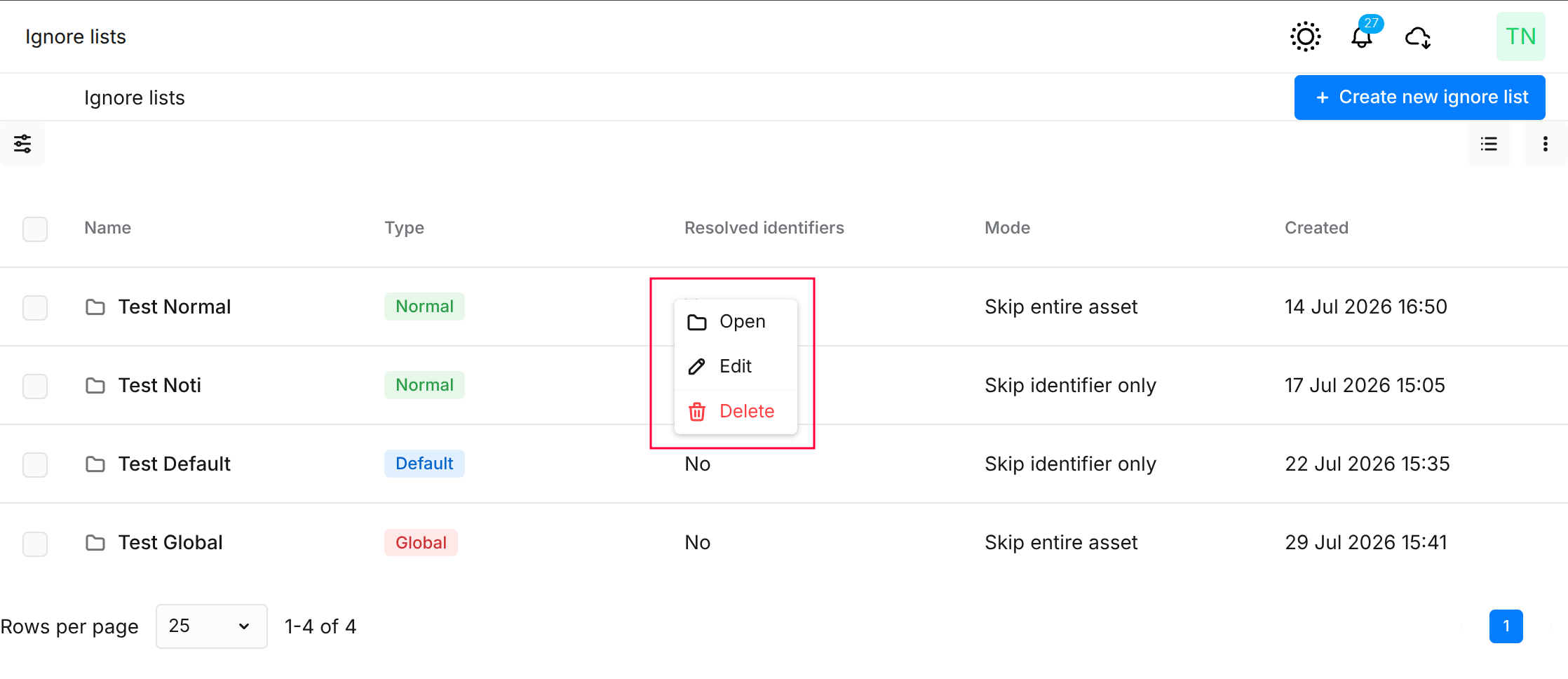
If you left-click on the list to open it, the Ignore List Entries view is displayed.
Ignore List Entry
The Ignore List Entries view displays the entries associated with the selected Ignore List.
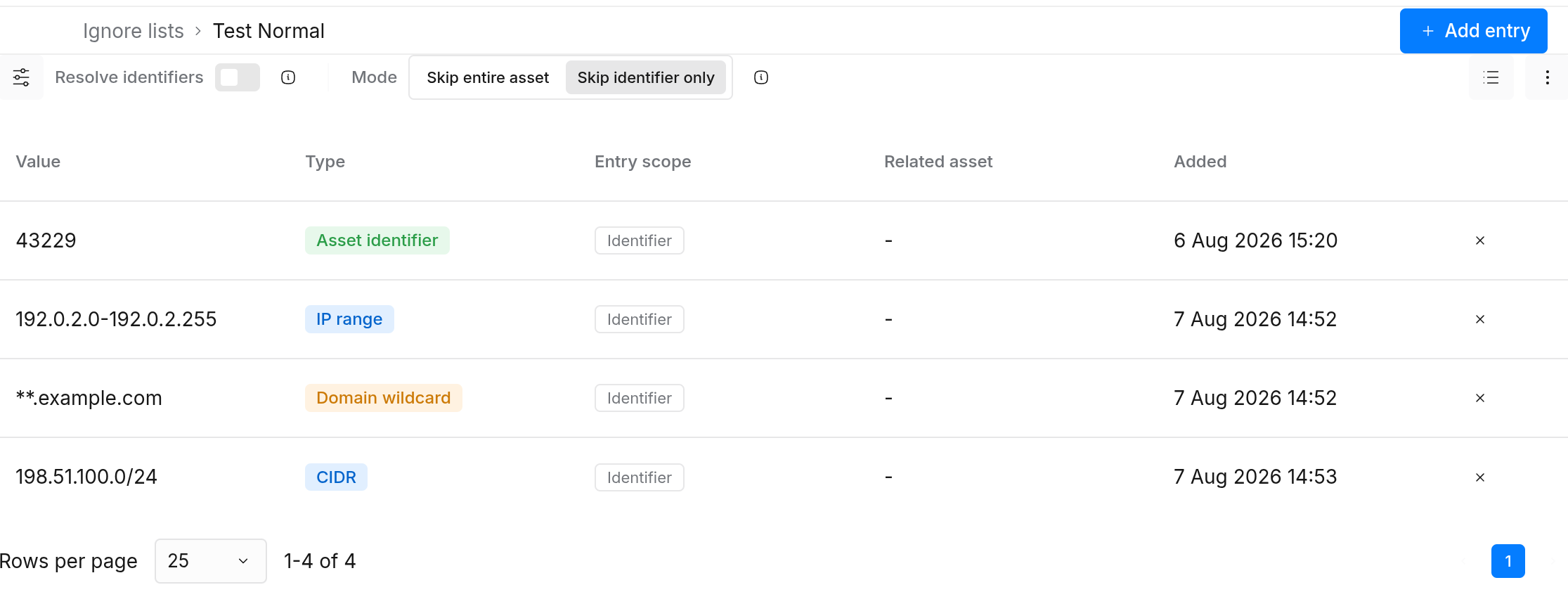
To add an entry to the list:
-
Click the Add entry button in the top right corner.
-
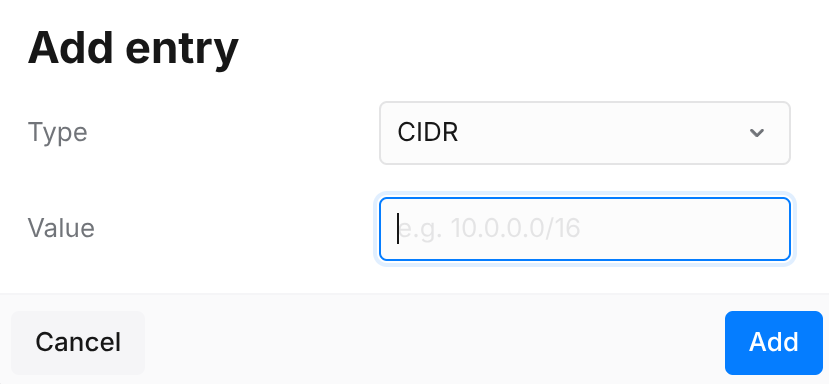
When adding an entry, the following fields can be specified:
-
Type – Specifies what kind of object or pattern the entry represents. The available types are:
-
Asset – Excludes a specific asset based on its Asset ID.
-
Asset Identifier – Excludes a specific asset identifier based on its Asset Identifier ID.
-
CIDR – Excludes all IP address within the specified IPv4 or IPv6 CIDR block, for example
192.168.0.0/24or2001:db8::/32. -
IP range – Excludes all IP addresses within the specified inclusive IPv4 or IPv6 address range in the format
<start IP>-<end IP>, for example192.0.2.1-192.0.2.50or3fff::1-3fff::a78. -
Domain wildcard – Excludes all hostnames that match the specified wildcard pattern, for example
*.example.comor**.example.com. A single asterisk (*) matches exactly one subdomain level, while a double asterisk (**) matches one or more subdomain levels.
-
-
Value – Specifies the value associated with the selected entry type, such as an Asset ID, Asset Identifier ID, CIDR block, IP range, or domain wildcard.
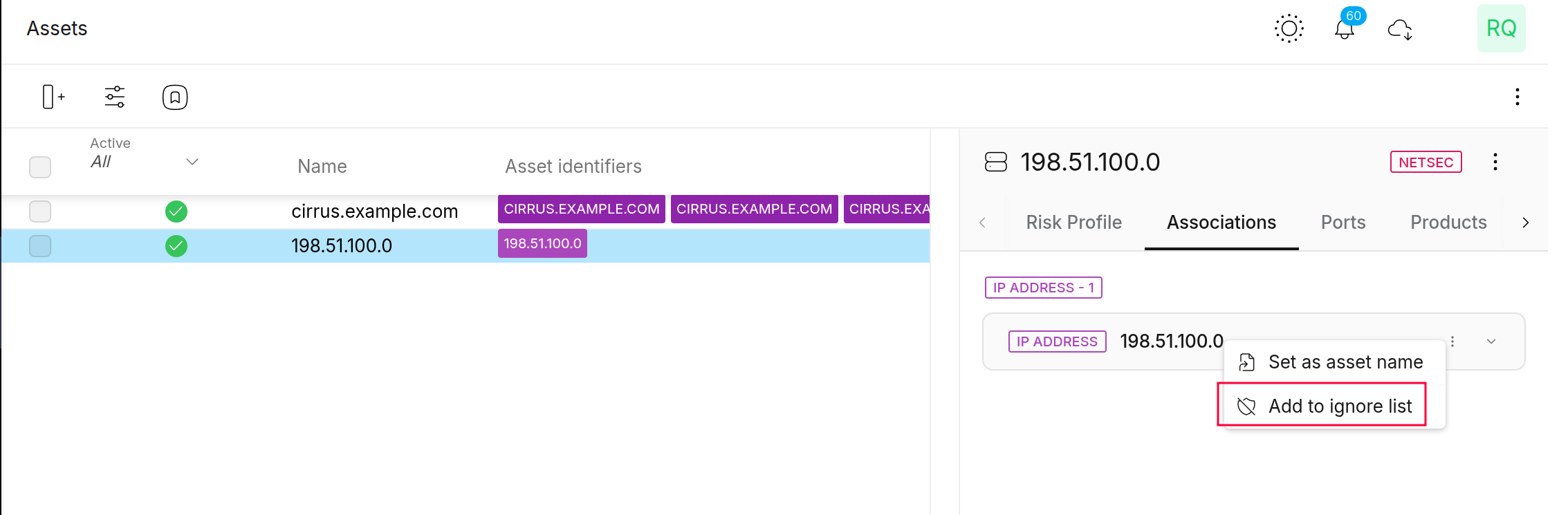
You can also add an entry directly from the Assets view:
Scan Configuration Integration
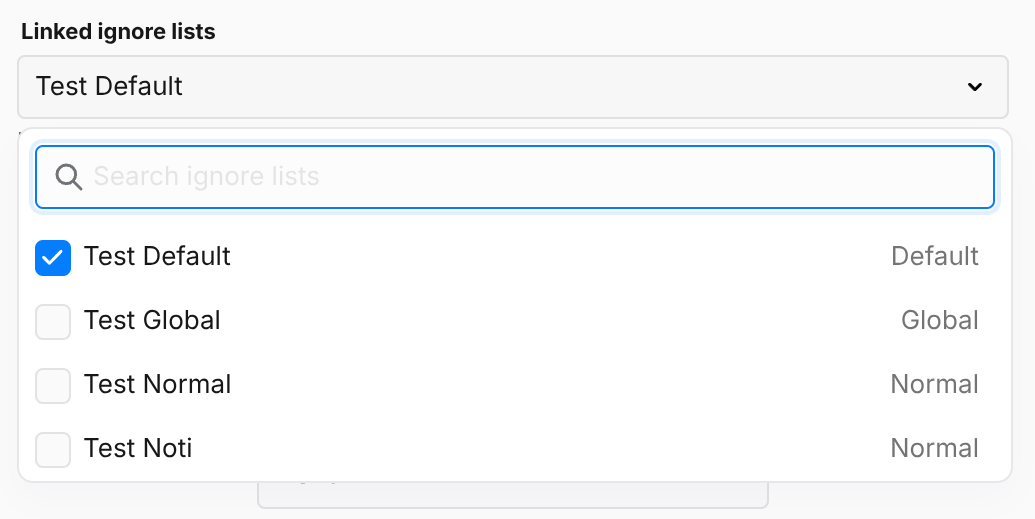
Ignore lists are only applied for Network host assessment scans. When creating a scan configuration, the configuration includes an Ignore Lists section:
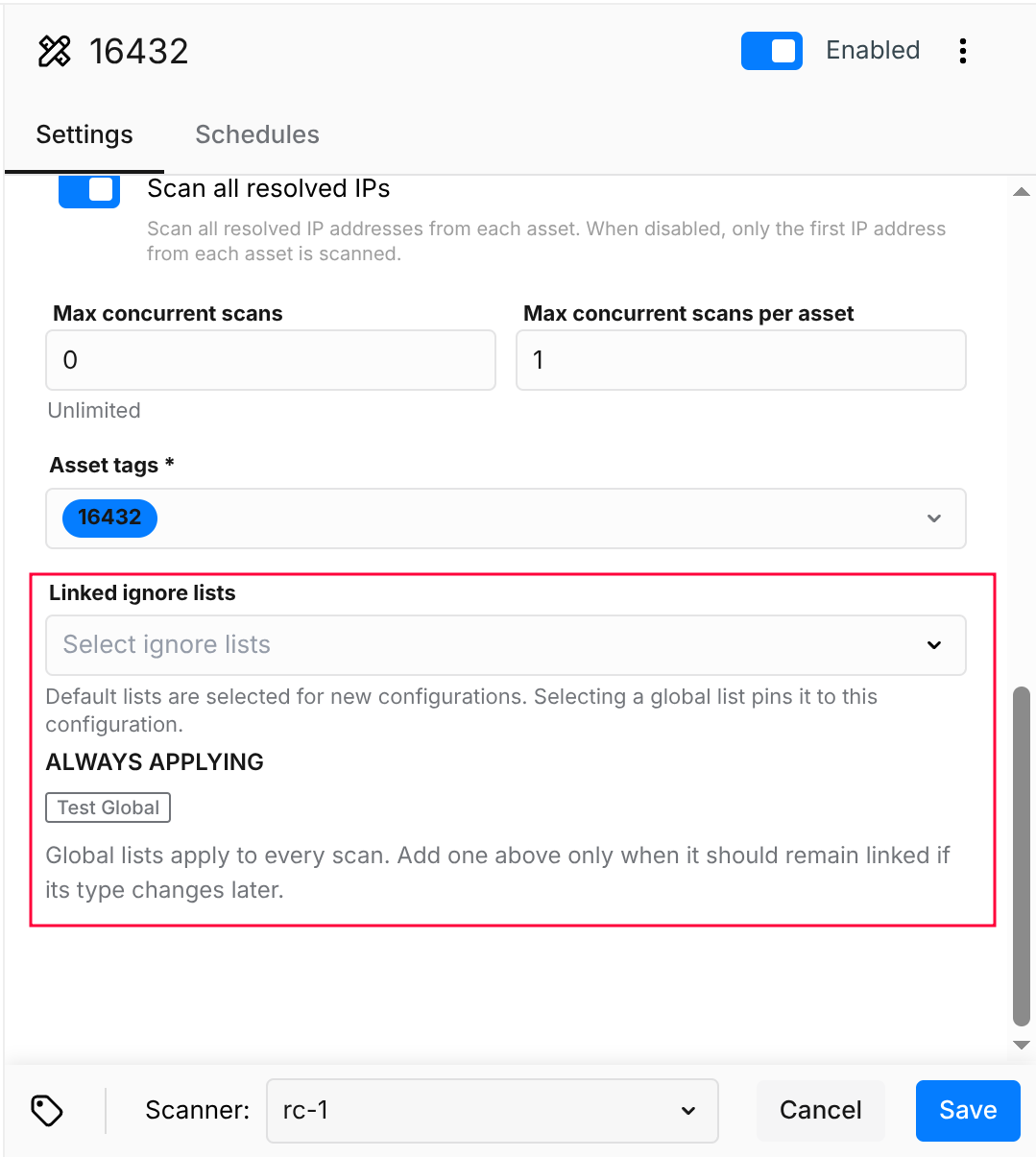
If you click on the box, you can select which ignore lists to use:
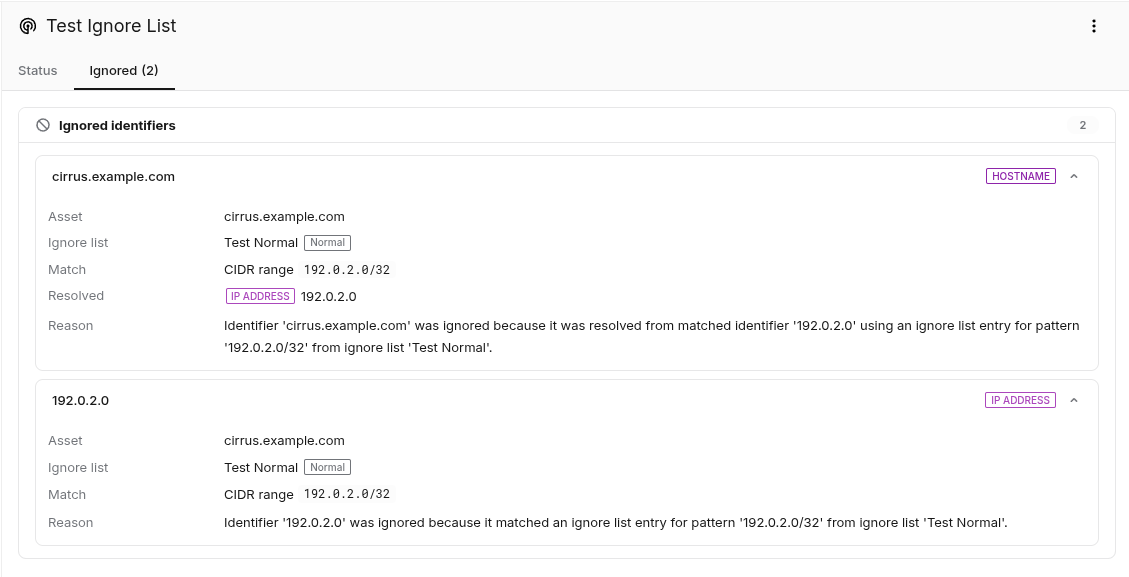
Ignored Targets Display for Scan Workflow
If a workflow includes a Network host assessment step, any excluded targets are displayed on the Ignored tab in the Scans view:
Related Articles
- Windows 10/Windows 2019 Server
- General Information about SMB/WinRM Scanning
- Windows 8.1
- Scan Blueprint
- How to Test SMB Authentication
- Docker Image Assessment
- Windows 2016 Server
- How to Scan AWS ECR Images
- PCI Scanning
- Scanning-Less Scanning
- Scan Scheduling Errors
- Network Host Assessment
- Core Installation
- Windows 2008 R2 Server
- Scanning Range