
Last Updated: 2026-10-07
Purpose
This article describes how to request a password-reset email and set a new password in Classic and the Portal.
Introduction
Password recovery restores access to an OUTSCAN or HIAB account when the password is forgotten. Recovery links requested in Classic open the Classic password-recovery dialog. Recovery links requested in the Portal open the Portal password-reset page. Follow the procedure for the interface opened by the email link.
An administrator also initiates password recovery. New-account invitations containing a password-setup link use the reset interface selected for the invitation. The Classic and Portal procedures use different controls and completion steps. Older links from the Portal also use the Classic dialog. Follow the procedure for the displayed interface.
Requirements
-
An OUTSCAN or HIAB account using local password sign-in.
-
Access to the email address registered for the account.
-
The account username when requesting a recovery email.
For accounts using an external identity provider or directory, contact the account administrator about password recovery. Resetting a local account password does not change the password managed by that provider. For sign-in methods, see Logging in to the Portal.
Reset a Password in Classic
Request a Password-Reset Email
To request a recovery email from Classic:
-
Open the Classic sign-in page.
-
Click Forgot password?.
-
Enter the account username in Username in the Forgot Login dialog.
-
Click the grey Get new Password button.
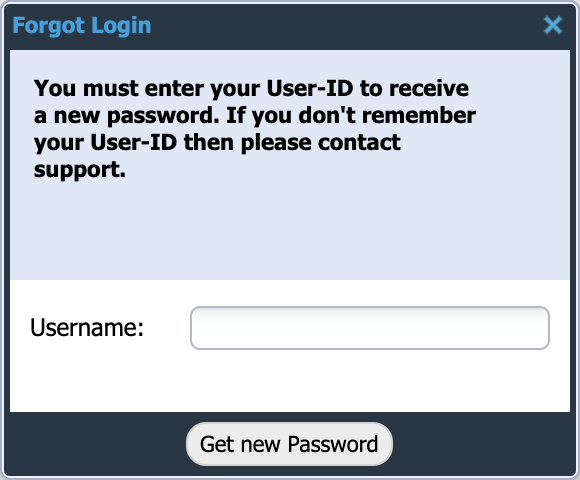
The request confirmation does not prove that an account matches the username or that the email has been delivered. If an error is displayed, follow the message or contact the account administrator.
Set a New Password
To complete a Classic password-reset link or invitation containing a password-setup link:
-
Open the password link in the email.
-
Enter a password in New password in the Password Recovery dialog.
-
Enter the same password in New password again.
-
Click the grey Save & Login button.
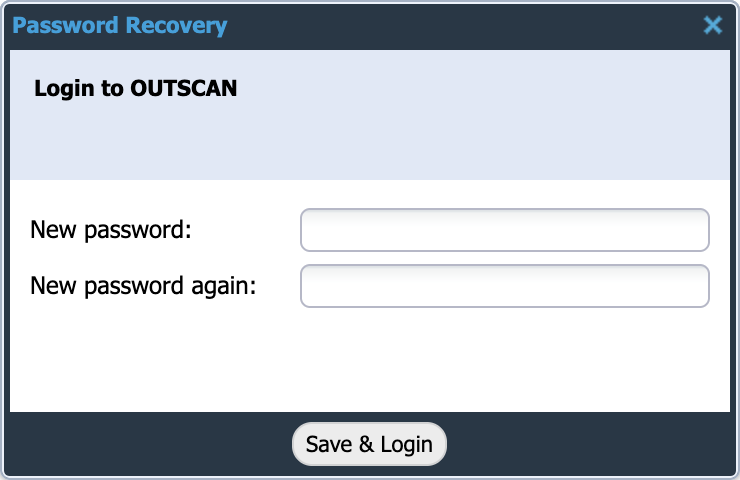
Classic checks the password against the account policy when it is submitted. If the password is accepted, Classic continues the sign-in process. Complete any additional authentication or terms acceptance requested.
If the password is rejected, correct it according to the displayed message and submit it again. For information about password policies, see Account Settings.
If the link is expired or no longer valid, open the Classic sign-in page and use Forgot password? to request another recovery email.
Reset a Password in the Portal
Request a Password-Reset Email
To request a recovery email:
-
Open the Portal sign-in page.
-
Click Forgot password?.
-
Enter the account username in Username.
-
Click the blue Send button.
If the request succeeds, the sign-in card is displayed again with a confirmation message in a green banner. The message does not confirm that an account matches the username or that the email has been delivered.
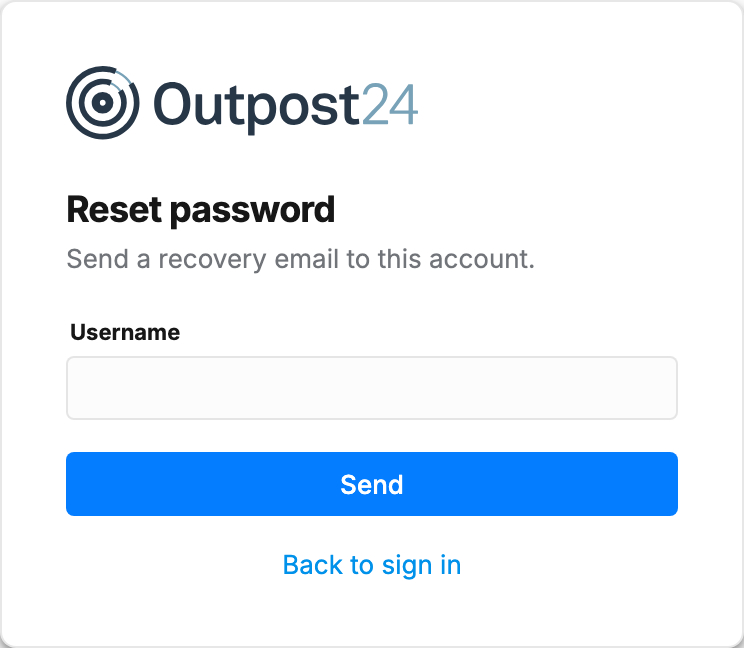
An administrator also has access to password recovery through User Management. For the administrator procedure, see User Management.
Set a New Password
To reset a password or complete an invitation containing a password-setup link:
-
Open the password link in the email.
-
Enter a password in New password that meets each displayed requirement.
-
Enter the same password in Confirm new password.
-
Click the blue Save new password button.
The requirements are updated as the password is entered. The requirements depend on the account policy; the screenshot shows an example.
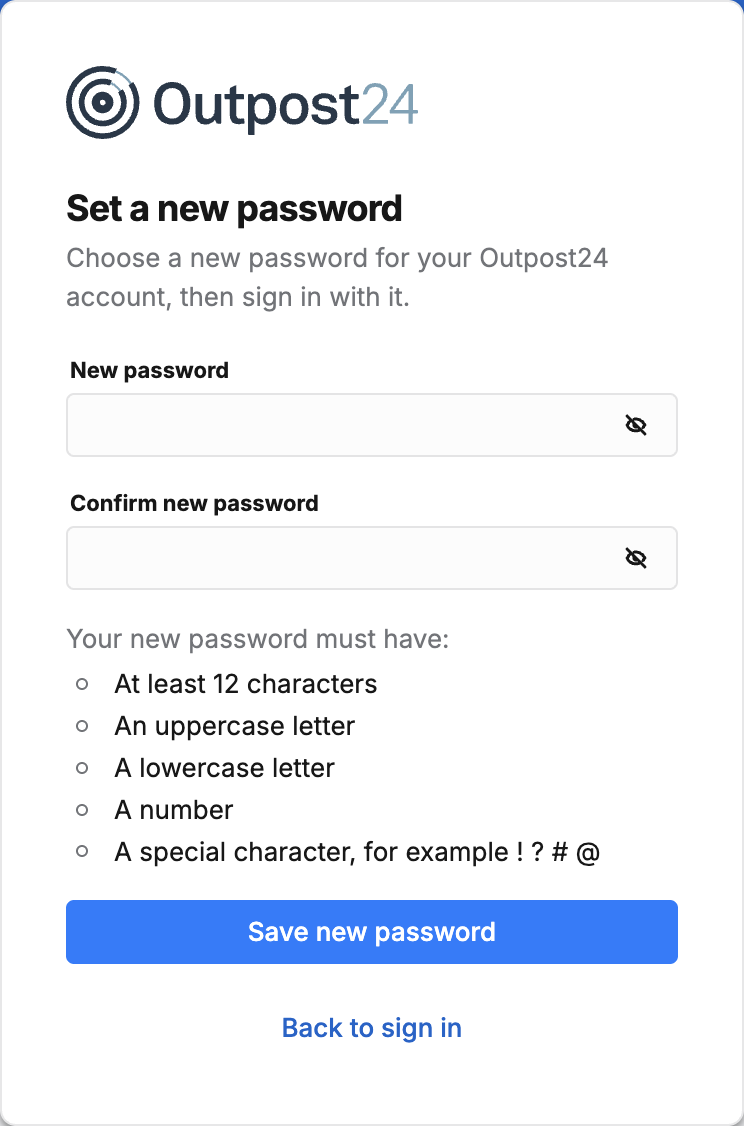
After the password is saved, Your new password is saved is displayed.
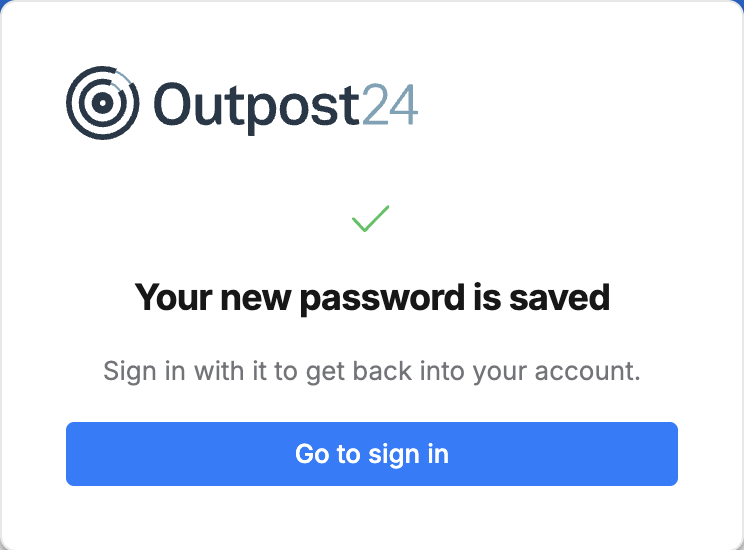
To sign in with the new password:
-
Click the blue Go to sign in button.
-
Enter the account username in Username.
-
Enter the new password in Password.
-
Click the blue Sign in button.
Complete any two-factor authentication requested on the sign-in page.
Resolve Password Errors
|
Problem |
Action |
|---|---|
|
A password requirement is not met. |
Change New password to meet each displayed requirement, then enter the same password in Confirm new password. |
|
The passwords do not match. |
Enter the same password in both fields. |
|
The password has been used before. |
Choose a different password. Password history is checked when the password is saved, even when every displayed requirement is met. |
|
The save request fails or the service is unavailable. |
Try saving the password again when the connection and service are available. |
For information about password policies, see Account Settings.
Request Another Link
If the link is expired or has already been used, the password form is replaced by an invalid-link message. The same message is also displayed when the link cannot be checked.
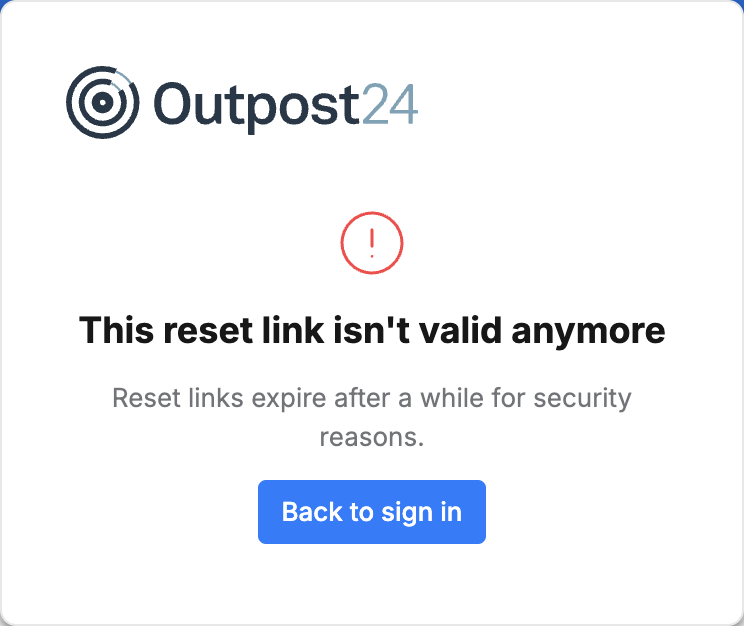
To request another recovery email:
-
Click the blue Back to sign in button.
-
Click Forgot password?.
-
Enter the account username in Username.
-
Click the blue Send button.
-
Open the password link in the new email.
If the email does not arrive, contact the account administrator to verify the username, the registered email address, and access to the account. For a new-account invitation, use the username provided in the invitation.
Related Articles