
Last Updated: 2026-04-17
Purpose
This article explains Table Export function that allows table data to be exported from any table view as a JSON- or a CSV-formated file.
Introduction
The Table Export feature allows users to download data directly from any table view within the platform as a file in either JSON or CSV format. The export reflects the current state of the table, meaning that only the visible columns, applied filters, and active sorting are included in the output. The feature works by sending a request to the same backend API that populates the table, ensuring that the exported data matches exactly what is displayed in the user interface. This provides a consistent and reliable way to extract data without manual copying.
This functionality is useful for extending the use of platform data beyond the interface. Exported data can be analyzed in external tools such as spreadsheets, shared with colleagues, or integrated into other systems for further processing. By enabling users to quickly download filtered and structured datasets, the feature improves efficiency, supports reporting and collaboration, and allows organizations to retain snapshots of data for auditing or historical comparison.
Exporting the Table
-
Navigate to any view that has a table such as assets, findings, scans, scan configurations and so on.
-
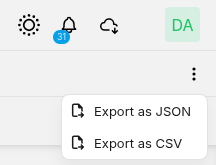
In the search-bar above the table, click the ⋮ kebab menu button on the far right.
-
A popover is displayed with export options: Export as JSON and Export as CSV.
-
Click an option → a confirmation dialog is displayed.
-
Click the action button to confirm → the file downloads automatically.
A confirmation dialog is displayed before every export so not to accidentally trigger large downloads.
What Gets Exported?
The export sends a request to the same API endpoint that populates the table. The request includes:
-
Visible columns only — columns that are enabled in the column panel.
-
Current filters — both table header filters and filter panel filters.
-
Current sorting — the active sort order.
-
Request filters — any view-level filters (for example, scans view excludes certain source types by default).
The backend returns a file and the browser triggers a native download automatically.
Column order in the UI is not preserved when exporting to file.
Error Handling
|
Scenario |
What happens |
|---|---|
|
Export request fails |
A toast is displayed: Export failed |
|
Network error |
Standard API error handling applies |
API Reference
Export Request
The export reuses the table's existing GET endpoint with additional parameters:
GET /{endpoint}?filename={endpoint}.{ext}&fields={visibleColumns}&{sortParams}&{filterParams}
Headers:
|
Header |
JSON export |
CSV export |
|---|---|---|
|
|
|
|
Query parameters:
|
Parameter |
Description |
Example |
|---|---|---|
|
|
Endpoint name + extension |
|
|
|
Visible columns |
|
|
Sort params |
Current table sorting |
|
|
Filter params |
Active filters |
|
Response:
-
Content-Type:application/jsonortext/csv -
Content-Disposition:attachment; filename="assets.csv" -
Body: blob data
CSV example:
name;platform;tags;assetIdentifiers
fake.site.com;Ubuntu;Aws:|extest:yes;"HOSTNAME:ec2-id.region-id.compute.amazonaws.com|HOSTNAME:fake.site.com|IP:""xxxx:xxxx:xx:xxxx:xxx:xxxx:xxxx:xxx""|IP:xx.xx.xx.xxx"
ec2-id.region-id.compute.amazonaws.com;Microsoft Windows;Aws:;HOSTNAME:ec2-id.region-id.compute.amazonaws.com|IP:yy.yy.yyy.yy
JSON example:
[{
  "name" : "fake.site.com",
  "platform" : "Ubuntu",
  "assetIdentifiers" : [ {
    "id" : 9360,
    "name" : "xx.xx.xx.xxx",
    "type" : "IP",
    "firstSeen" : "2026-03-23T10:38:37.508722Z",
    "lastSeen" : "2026-03-23T11:01:51.576Z",
    "scannerId" : 0,
    "scannerName" : "Local",
    "source" : [ "NETSEC" ],
    "scanSelectionType" : "INCLUDED",
    "linkId" : 10069
  }, {
    "id" : 9361,
    "name" : "fake.site.com",
    "type" : "HOSTNAME",
    "firstSeen" : "2026-03-23T10:38:37.508722Z",
    "lastSeen" : "2026-03-23T10:38:37.508722Z",
    "scannerId" : 0,
    "scannerName" : "Local",
    "source" : [ "NETSEC" ],
    "scanSelectionType" : "INCLUDED",
    "linkId" : 10070
  }, {
    "id" : 9362,
    "name" : "ec2-id.region-id.compute.amazonaws.com",
    "type" : "HOSTNAME",
    "firstSeen" : "2026-03-23T10:38:37.508722Z",
    "lastSeen" : "2026-03-23T10:38:37.508722Z",
    "scannerId" : 0,
    "scannerName" : "Local",
    "source" : [ "NETSEC" ],
    "scanSelectionType" : "INCLUDED",
    "linkId" : 10071
  }, {
    "id" : 9363,
    "name" : "xxxx:xxxx:xx:xxxx:xxx:xxxx:xxxx:xxx",
    "type" : "IP",
    "firstSeen" : "2026-03-23T10:38:37.508722Z",
    "lastSeen" : "2026-03-23T10:38:37.508722Z",
    "scannerId" : 0,
    "scannerName" : "Local",
    "source" : [ "NETSEC" ],
    "scanSelectionType" : "INCLUDED",
    "linkId" : 10072
  } ],
  "tags" : [ {
    "id" : 2664,
    "key" : "Aws",
    "value" : "",
    "inherited" : false
  }, {
    "id" : 2663,
    "key" : "extest",
    "value" : "yes",
    "inherited" : false
  } ]
},{
  "name" : "ec2-id.region-id.compute.amazonaws.com",
  "platform" : "Microsoft Windows",
  "assetIdentifiers" : [ {
    "id" : 9358,
    "name" : "yy.yy.yyy.yy",
    "type" : "IP",
    "firstSeen" : "2026-03-23T10:37:26.644628Z",
    "lastSeen" : "2026-03-23T11:02:57.101Z",
    "scannerId" : 0,
    "scannerName" : "Local",
    "source" : [ "NETSEC" ],
    "scanSelectionType" : "INCLUDED",
    "linkId" : 10067
  }, {
    "id" : 9359,
    "name" : "ec2-id.region-id.compute.amazonaws.com",
    "type" : "HOSTNAME",
    "firstSeen" : "2026-03-23T10:37:26.644628Z",
    "lastSeen" : "2026-03-23T10:37:26.644628Z",
    "scannerId" : 0,
    "scannerName" : "Local",
    "source" : [ "NETSEC" ],
    "scanSelectionType" : "INCLUDED",
    "linkId" : 10068
  } ],
  "tags" : [ {
    "id" : 2664,
    "key" : "Aws",
    "value" : "",
    "inherited" : false
  } ]
}]