
Last updated: 2026-09-07
Purpose
This article describes the PTaaS Workspace and how to use it to monitor penetration testing engagements, review subscription availability, identify items that require attention, and start new engagements.
Introduction
The PTaaS Workspace provides a central management view for Penetration Testing as a Service (PTaaS). It brings together the operational information that was previously shown alongside vulnerability information in the Asset Groups dashboard.
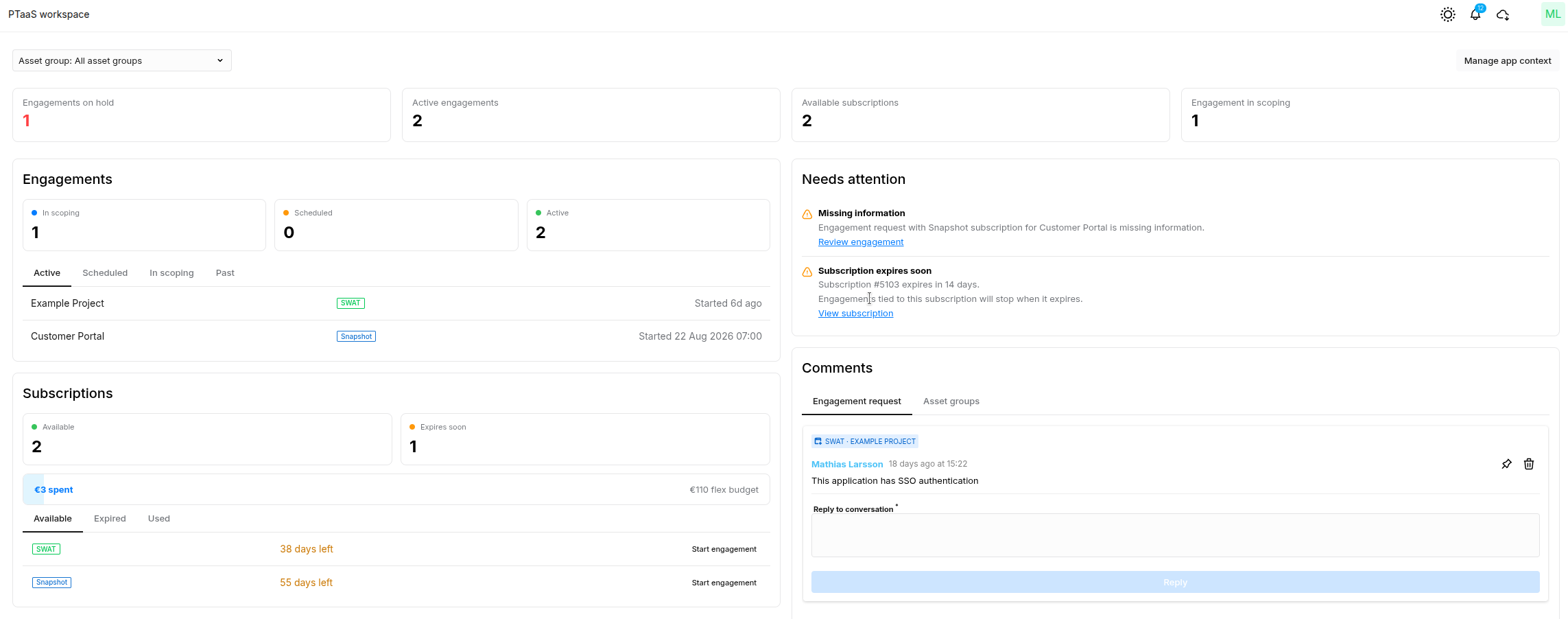
Use the workspace to see what is in scoping, scheduled, active, or on hold; review available and completed subscriptions; and find issues that may block progress or require action. The information shown depends on your current customer context, access permissions, and selected asset group.
Prerequisites
You need access to the Outpost24 Portal and the relevant PTaaS managed asset groups.
Access is controlled by role-based permissions rather than a specific named Portal role. A restricted user must have at least one of the following permissions:
-
Engagement requests — View
-
Engagement requests — View and manage
-
Subscriptions — View
-
Subscriptions — View and manage
The workspace respects the customer and managed-resource scope available to the signed-in user. Starting a new engagement requires Engagement requests — View and manage.
For general information about navigating the Portal, see Getting Started with the Portal.
Open the PTaaS Workspace
-
Sign in to the Outpost24 Portal.
-
Select PTaaS Workspace, the first item at the top of the main menu.
You can also make the workspace your default landing page:
-
Open Settings.
-
Select Start page.
-
Select PTaaS Workspace.
Filter by Asset Group
The Asset group selector lists the managed asset groups available in your current context.
-
Select Asset group: All asset groups to show information across your current scope.
-
Select a managed asset group to filter the workspace to that group. The selector displays Asset group: asset group name, for example, Asset group: Example Project.
-
KPI values, engagement and subscription lists, important updates, and comments update to match the selected scope.
Workspace Overview
The top of the workspace contains four KPI tiles. These provide an immediate summary of work that is active or requires attention.
|
KPI |
Description |
|---|---|
|
Engagements on hold |
Engagement requests that cannot progress because additional information is required. |
|
Active engagements |
Penetration testing engagements that are currently active. |
|
Available subscriptions |
Subscriptions that are available to activate for a new engagement. |
|
Engagements in scoping |
Engagement requests that are being reviewed and scoped. |
All values reflect the current workspace scope and selected asset group.
Engagements
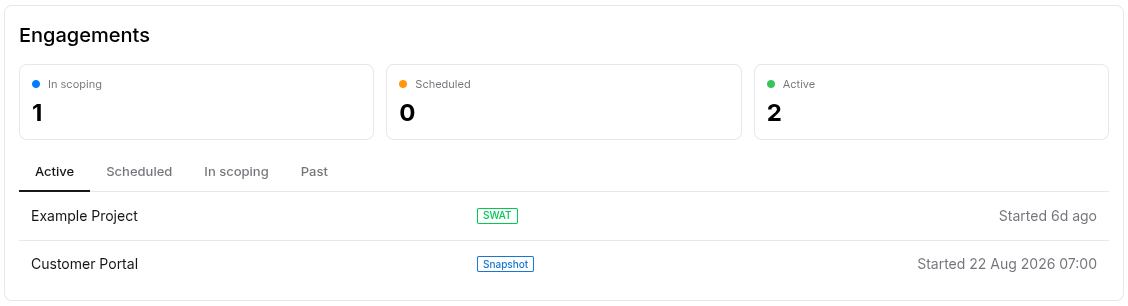
The Engagements panel summarizes the progress of penetration testing work.
Summary Counters
The panel shows the number of engagements that are:
-
In scoping — the engagement request is being reviewed.
-
Scheduled — the engagement has been scheduled but has not started.
-
Active — testing is currently active.
Engagement Tabs
Use the tabs to review engagements by lifecycle stage:
|
Tab |
Description |
|---|---|
|
Active |
Engagements that are currently active. |
|
Scheduled |
Engagements scheduled to start. |
|
In scoping |
Requests currently being reviewed and scoped. |
|
Past |
Engagements linked to subscriptions that have ended. |
Each row displays the asset group name or application name, subscription type, and the relevant date for the engagement stage. If an asset group name is unavailable, the application name or a subscription-based identifier is shown instead.
The In scoping tab uses the preferred start date supplied in the engagement request. The Scheduled, Active, and Past tabs show the subscription activation date.
The lists are paginated. You can display 5, 10, 25, or 50 rows per page. Changing tabs, pages, or page size does not change the selected asset group scope.
Subscriptions
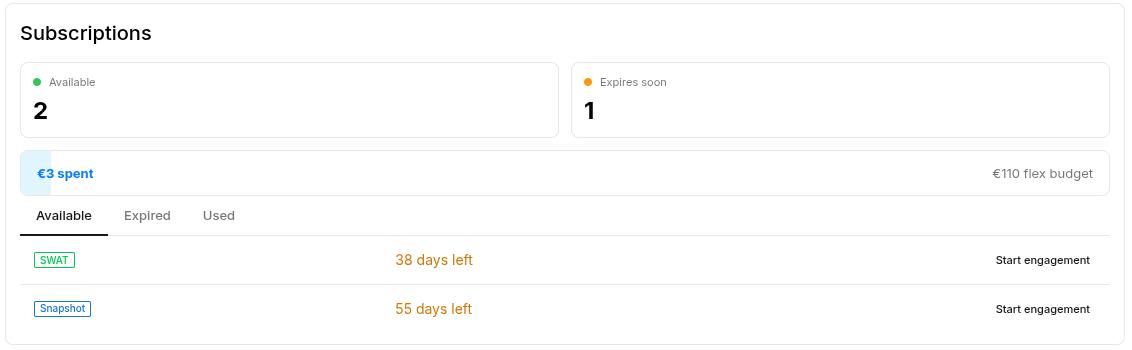
The Subscriptions panel provides a lifecycle view of subscriptions in the current workspace scope.
Summary Counters
-
Available — subscriptions that can be activated for a new engagement.
-
Expires soon — active subscriptions that end within the next 90 days.
Subscription Tabs
|
Tab |
Description |
Displayed value |
|---|---|---|
|
Available |
Subscriptions that are available to activate. |
Subscription duration. |
|
Expired |
Subscriptions that were not activated before their redemption period ended. |
Redemption expiration date. |
|
Used |
Subscriptions that were activated and have now ended. |
Subscription end date. |
In this panel, Expired means that the subscription was not activated before its redemption deadline. A subscription shown under Used was activated and has since ended.
The subscription lists use the same page sizes as the Engagements panel: 5, 10, 25, or 50 rows per page.
Start an Engagement
Supported subscriptions in the Available tab provide a Start engagement action.
To start an engagement:
-
Select the managed asset group that the engagement applies to.
-
Open the Subscriptions panel.
-
Select the Available tab.
-
Select the subscription to activate.
-
Select Start engagement.
-
Complete and submit the engagement-request wizard.
The wizard uses the selected asset group and subscription type as the starting context.
For information about completing and tracking a request, see Engagement Requests.
Important Updates
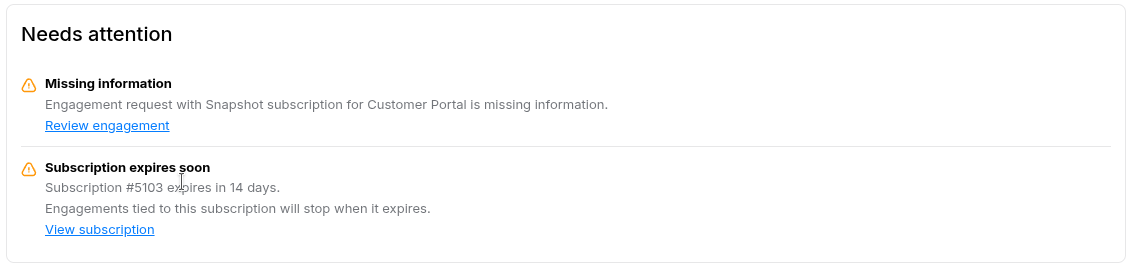
The Important updates panel prioritizes information that may block progress, increase cost, or require action.
Engagement On Hold
An engagement is placed on hold when the request requires additional information. These updates are shown with the highest priority and are ordered by the most recently updated request.
Review the engagement context and any available comment to identify the information that is preventing the request from progressing.
Subscription Expires Soon
This update is shown when an active subscription ends within the next 90 days. Subscriptions with the least time remaining are shown first.
The update shows:
-
The subscription identifier.
-
The number of days remaining.
-
A warning when associated engagements may be affected.
Comments
The Comments panel provides two tabs:
-
Engagement request — comments associated with engagement requests linked to the selected asset group.
-
Asset groups — comments associated directly with the selected asset group.
When you select an asset group, comments in both tabs are limited to that group.
Manage Application Context
Use application context to share information about your application directly from the PTaaS Workspace. Add details about new features, changes in functionality, or supporting documentation to help the testing team prepare for testing. The testing team is notified when an update is submitted, so they can stay informed about application changes.
Add or Update App Context
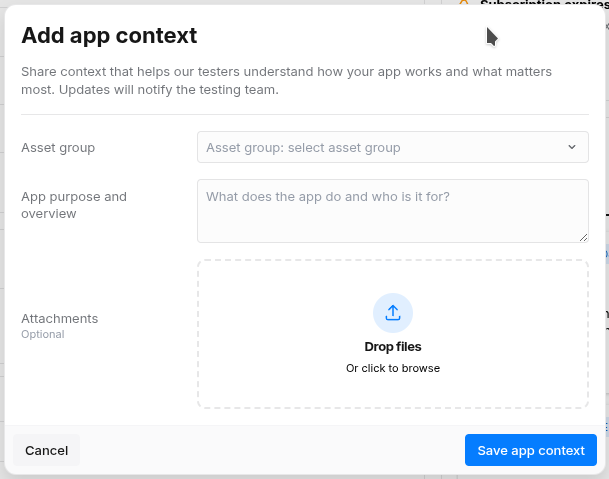
To add app context:
-
Select a managed asset group from the Asset group selector. If All asset groups is selected, choose the target asset group in the dialog.
-
Select Manage app context.
-
Enter the application details in App purpose and overview. This field is required.
-
Optionally add files under Attachments.
-
Click Save app context.
Saving an existing context creates a new version. Files from the previous version remain in history but are not copied to the new version. Each update notifies the testing team.
Related Articles