
Last updated: 2026-04-02
Purpose
This guide provides step-by-step instructions for configuring a certificate chain on Windows Server to enable secure WinRM (Windows Remote Management) authentication over HTTPS. WinRM HTTPS requires properly configured certificates to establish encrypted connections between clients and the Windows Server.
Introduction
A certificate chain commonly consists of three components:
-
a self-signed root Certificate Authority (CA)
-
an intermediate CA
-
a leaf certificate
During the TLS handshake, the Windows Server automatically presents the leaf certificate and intermediate CA to clients, while clients must provide the root CA for validation. This hierarchical structure ensures secure authentication and encrypted communication.
This document covers the complete process, from generating the certificate chain using OpenSSL to importing certificates into the appropriate Windows certificate stores and configuring the WinRM HTTPS listener. By following these instructions, you will establish a functional certificate-based authentication system for WinRM connections.
Certificates
Prerequisites
OpenSSL needs to be installed before continuing.
Generate a Self-Signed Root CA
Create a Root CA Configuration File
root_ca.cnf
[req]
default_bits = 4096
prompt = no
default_md = sha256
distinguished_name = dn
x509_extensions = v3_ca

[dn]
CN = RootCA

[v3_ca]
subjectKeyIdentifier = hash
authorityKeyIdentifier = keyid:always,issuer
basicConstraints = critical, CA:true
keyUsage = critical, digitalSignature, cRLSign, keyCertSign
Generate Root CA
Run the following commands in the same folder as the root_ca.cnf configuration file:
1. Generate Root CA private key
openssl genrsa -out self_signed_ca_pkey.pem 4096
2. Generate Root CA PEM file using the root_ca.cnf config file and the private key
openssl req -x509 -new -nodes -key self_signed_ca_pkey.pem -sha256 -days 3650 -out self_signed_ca_crt.pem -config root_ca.cnf -extensions v3_ca
3. Import the PEM file to the Trusted Root store
Import-Certificate -FilePath "Path\To\Your\self_signed_ca_crt.pem" -CertStoreLocation Cert:\LocalMachine\Root
Define your own path in your Windows Server to the PEM file, for example: C:\Users\Administrator\Documents\certs\self_signed_ca_crt.pem
4. Verify your imported certificate
Get-ChildItem Cert:\LocalMachine\Root | Where-Object {$_.Subject -like "*RootCA*"}
Generate an Intermediate CA
Create an Intermediate CA Configuration File
intermediate_ca.cnf - create this file in the same folder as the generated Root CA files.
[req]
default_bits = 4096
prompt = no
default_md = sha256
distinguished_name = dn
x509_extensions = v3_ca

[dn]
CN = IntermediateCA

[v3_ca]
subjectKeyIdentifier = hash
authorityKeyIdentifier = keyid:always,issuer
basicConstraints = critical, CA:true, pathlen:0
keyUsage = critical, digitalSignature, cRLSign, keyCertSign
certificatePolicies = 2.5.29.32.0
crlDistributionPoints = URI:http://pki.local/root_ca.crl
authorityInfoAccess = caIssuers;URI:http://pki.local/root_ca.crt
-
crlDistributionPoints(CDP) tells clients where to download the Certificate Revocation List to check if a certificate has been revoked. This property is typically optional for self-signed certificates, but some strict validators check for the extension’s presence, so we are using a placeholder URL in this case. The actual certificate chain delivery happens through the TLS handshake, not via the URL. -
authorityInfoAccess(AIA) provides URLs where clients can obtain additional information about the certificate's issuer. Similar tocrlDistributionPoints, this is optional for self-signed certificates. -
certificatePolicies = 2.5.29.32.0means the certificates policies extension is set toanyPolicyOID, which means:-
Universal policy - The certificate can be used for any purpose
-
No restrictions - No specific policy requirements apply
-
Generic/permissive - Commonly used when no formal certificate policy exists
-
-
basicConstraints = critical, CA:true, pathlen:0- we are usingpathlen:0for basic constraints to indicate this CA can only sign end-entity (leaf) certificates, not other CAs.
Generate Intermediate CA
Run the following commands in the same folder as the intermediate_ca.cnf configuration file:
1. Generate Intermediate CA private key
openssl genrsa -out intermediate_ca_key.pem 4096
2. Generate Certificate Signing Request (CSR) for Intermediate CA
openssl req -new -key intermediate_ca_key.pem -out intermediate_ca.csr -config intermediate_ca.cnf
3. Sign the Intermediate CA with the Root CA
openssl x509 -req -in intermediate_ca.csr -CA self_signed_ca_crt.pem -CAkey self_signed_ca_pkey.pem -CAcreateserial -out intermediate_ca_cert.pem -days 3650 -sha256 -extfile intermediate_ca.cnf -extensions v3_ca
4. Verify the Intermediate CA's issuer, which should be the Root CA
openssl x509 -in intermediate_ca_cert.pem -noout -issuer -subject
5. Import the PEM file to the Intermediate store
Import-Certificate -FilePath "Path\To\Your\intermediate_ca_cert.pem" -CertStoreLocation Cert:\LocalMachine\CA
6. Verify your imported certificate
Get-ChildItem Cert:\LocalMachine\CA | Where-Object {$_.Subject -like "*IntermediateCA*"}
Generate a Leaf Certificate
Create a Leaf Certificate Configuration File
leaf_cert.cnf - create this file in the same folder as the generated Root CA/Intermediate CA files.
[req]
default_bits = 4096
prompt = no
default_md = sha256
distinguished_name = dn
req_extensions = v3_req

[dn]
CN = EC2AMAZ-8P1543L

[v3_req]
subjectKeyIdentifier = hash
basicConstraints = critical, CA:false
keyUsage = critical, digitalSignature, keyEncipherment, dataEncipherment
extendedKeyUsage = serverAuth, clientAuth
subjectAltName = @alt_names
certificatePolicies = 2.5.29.32.0

[v3_sign]
subjectKeyIdentifier = hash
authorityKeyIdentifier = keyid:always,issuer
basicConstraints = critical, CA:false
keyUsage = critical, digitalSignature, keyEncipherment, dataEncipherment
extendedKeyUsage = serverAuth, clientAuth
subjectAltName = @alt_names
certificatePolicies = 2.5.29.32.0
crlDistributionPoints = URI:http://pki.local/intermediate_ca.crl
authorityInfoAccess = caIssuers;URI:http://pki.local/intermediate_ca.crt

[alt_names]
DNS.1 = EC2AMAZ-8P1543L
DNS.2 = ec2-13-53-120-89.eu-north-1.compute.amazonaws.com
IP.1 = 10.98.0.7
IP.2 = 13.53.120.89
IP.3 = fe80::effe:d2a2:940e:b32
-
CN = EC2AMAZ-8P1543L: replace the value for this property with your own common name. -
[alt_names]: define your own SANs. SANs is a list of DNS and IPs that clients may use to connect to the Windows Server. -
crlDistributionPoints&authorityInfoAccess: similar to Intermediate CA, these extensions are optional for self-signed certificates.
Generate a Leaf Certificate
Run the following commands in the same folder as the leaf_cert.cnf configuration file:
1. Generate a leaf certificate private key
openssl genrsa -out leaf_key.pem 4096
2. Generate Certificate Signing Request (CSR) for the leaf certificate
openssl req -new -key leaf_key.pem -out leaf.csr -config leaf_cert.cnf
3. Sign the leaf certificate with the Intermediate CA
openssl x509 -req -in leaf.csr -CA intermediate_ca_cert.pem -CAkey intermediate_ca_key.pem -CAcreateserial -out leaf_cert.pem -days 365 -sha256 -extfile leaf_cert.cnf -extensions v3_sign
4. Verify the leaf certificate's issuer, which should be the Intermediate CA
openssl x509 -in leaf_cert.pem -noout -issuer -subject
5. Create a PFX file from the PEM file (you will need to create a password which will be later used for certificate import)
openssl pkcs12 -export -out leaf.pfx -inkey leaf_key.pem -in leaf_cert.pem
6. Import the PFX file to the Personal store
$password = ConvertTo-SecureString -String "071Khong" -Force -AsPlainText
Import-PfxCertificate -FilePath "Path\To\Your\leaf.pfx" -CertStoreLocation Cert:\LocalMachine\My -Password $password
7. Verify your imported certificate
Get-ChildItem Cert:\LocalMachine\My | Where-Object {$_.Subject -like "*EC2*"}
Create an HTTPS Listener for WinRM
1. Check if there is any running HTTPS listener
winrm enumerate winrm/config/listener
2. Remove the current HTTPS listener if any
Get-ChildItem WSMan:\localhost\Listener | Where-Object {$_.Keys -contains "Transport=HTTPS"} | Remove-Item -Recurse -Force
3. Get the leaf certificate's thumbprint and store it in a variable
$thumbprint = (Get-ChildItem Cert:\LocalMachine\My | Where-Object {$_.Subject -like "*EC2AMAZ-8P1543L*"}).Thumbprint
Write-Host "Thumbprint: $thumbprint"
4. Create an HTTPS listener for WinRM
New-Item -Path WSMan:\localhost\Listener -Transport HTTPS -Address * -CertificateThumbPrint $thumbprint -Force
5. Verify that the listener is up and running
winrm enumerate winrm/config/listener
Verification
Follow these steps to verify the chain of certificates on both the Windows Server and clients.
Windows Server
-
Press
Win + R(or searchrunusing the Windows search bar), typemmc, and hit Enter. -
Go to File > Add/Remove Snap-in.
-
Select Certificates in the list of Available snap-ins and click Add.
-
Choose Computer account > Local computer, then click Finish and OK.
-
Navigate to the certificate:
-
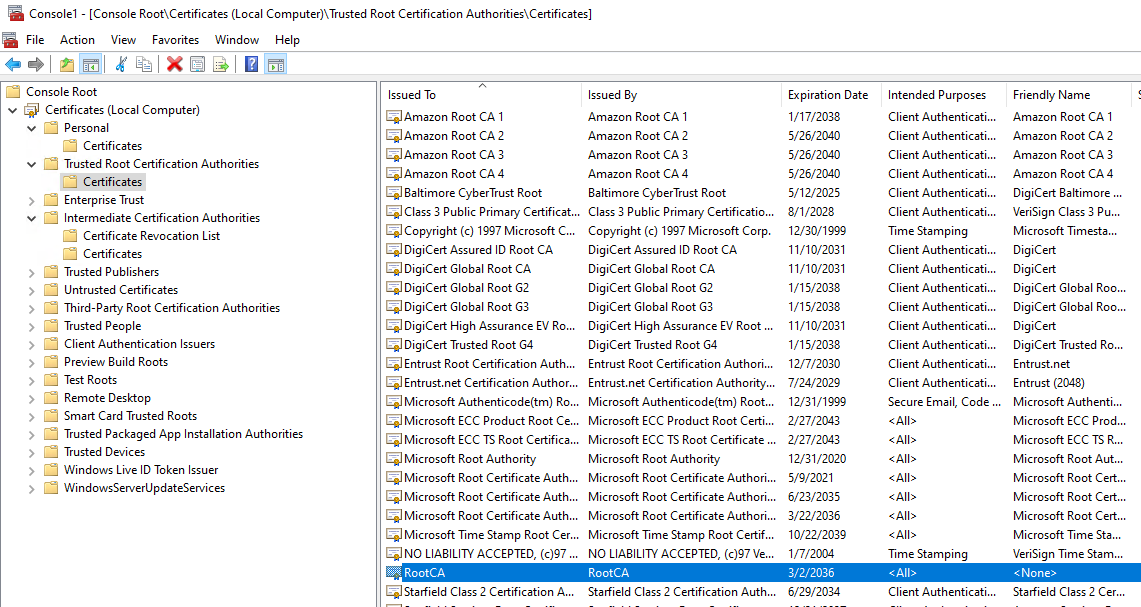
The Root CA is located in the Trusted Root Certification Authorities > Certificates section:
-
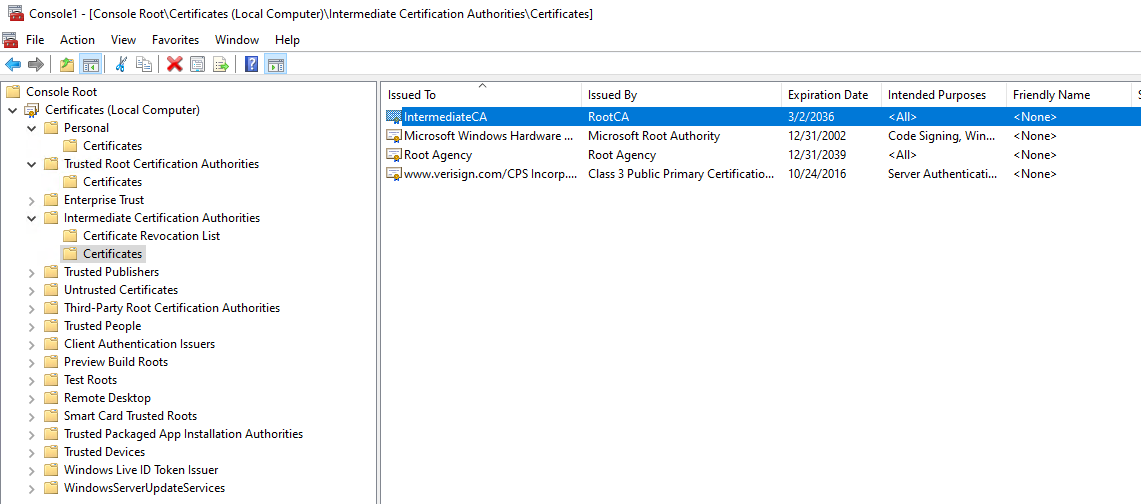
The Intermediate CA is located in the Intermediate Certification Authorities > Certificates section:
-
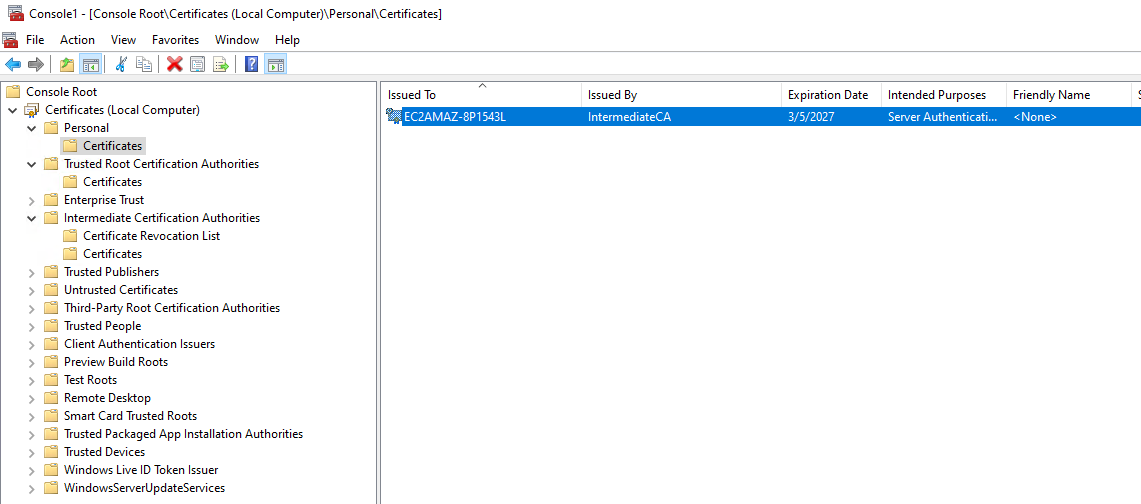
The leaf certificate is located in the Personal > Certificates section:
-
-
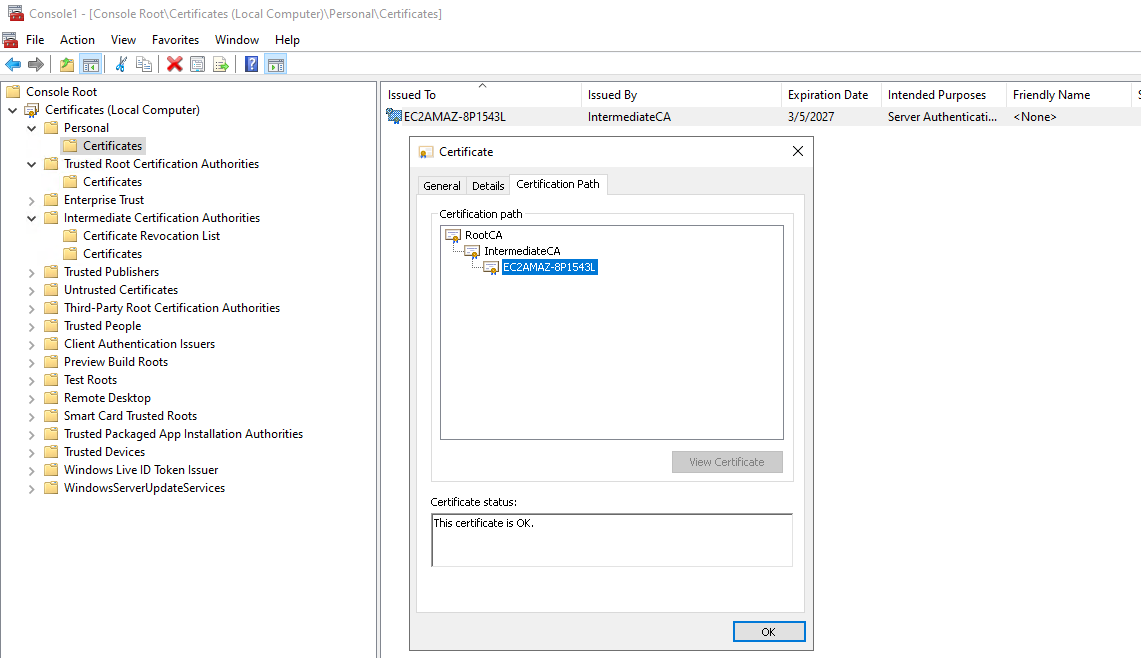
Double-click the certificate and click the Certification Path tab to see the chain.
Clients
Copy the root certifcate to the client, for example an Ubuntu machine that wishes to connect to the Windows Server via WinRM, and on that machine run the following command:
openssl s_client -connect 13.53.120.89:5986 -showcerts -CAfile /Path/To/Your/ca_cert.pem
Replace the path with your actual path to the Root CA file.
Successful response sample:
CONNECTED(00000003)
depth=2 CN = RootCA
verify return:1
depth=1 CN = IntermediateCA
verify return:1
depth=0 CN = EC2AMAZ-8P1543L
verify return:1
---
Certificate chain
 0 s:CN = EC2AMAZ-8P1543L
   i:CN = IntermediateCA
   a:PKEY: rsaEncryption, 4096 (bit); sigalg: RSA-SHA256
   v:NotBefore: Mar  5 03:38:37 2026 GMT; NotAfter: Mar  5 03:38:37 2027 GMT
-----BEGIN CERTIFICATE-----
...
-----END CERTIFICATE-----
 1 s:CN = IntermediateCA
   i:CN = RootCA
   a:PKEY: rsaEncryption, 4096 (bit); sigalg: RSA-SHA256
   v:NotBefore: Mar  5 03:35:46 2026 GMT; NotAfter: Mar  2 03:35:46 2036 GMT
-----BEGIN CERTIFICATE-----
...
-----END CERTIFICATE-----
---
Server certificate
subject=CN = EC2AMAZ-8P1543L
issuer=CN = IntermediateCA
---
No client certificate CA names sent
Peer signing digest: SHA256
Peer signature type: RSA-PSS
Server Temp Key: X25519, 253 bits
---
SSL handshake has read 3687 bytes and written 373 bytes
Verification: OK
---
New, TLSv1.3, Cipher is TLS_AES_256_GCM_SHA384
Server public key is 4096 bit
Secure Renegotiation IS NOT supported
Compression: NONE
Expansion: NONE
No ALPN negotiated
Early data was not sent
Verify return code: 0 (ok)
---
---
Post-Handshake New Session Ticket arrived:
SSL-Session:
    Protocol  : TLSv1.3
    Cipher    : TLS_AES_256_GCM_SHA384
    Session-ID: F461216CC953B35A7EBCED236D909A05185EF3701CA649CD84E1F2FCB95F99C0
    Session-ID-ctx:
    Resumption PSK: C44229B9CFEDF66E4D08BC648625A1272063B8AC76141F0CA816FF6A4C90EC2A3BED34828B659425D97CA9D3A3F1DC92
    PSK identity: None
    PSK identity hint: None
    SRP username: None
    TLS session ticket lifetime hint: 36000 (seconds)
    TLS session ticket:
    0000 - 2a 28 00 00 0c bd 41 04-b3 5c 53 5b 6e 8a 96 c6   *(....A..\S[n...
    0010 - f9 e6 5d 88 34 27 73 2f-96 a1 07 6c 13 09 7b e3   ..].4's/...l..{.

    Start Time: 1772768680
    Timeout   : 7200 (sec)
    Verify return code: 0 (ok)
    Extended master secret: no
    Max Early Data: 0
---
A successful WinRM connection is confirmed when the server presents both the intermediate CA and leaf certificate, and OpenSSL reports Verify return code: 0 (ok).
Certificate Chain Summary
Available Certificates
Root CA (self-signed)
    ↓ signs
Intermediate CA (signed by Root CA)
    ↓ signs
Leaf Certificate (signed by Intermediate CA)
Certificate Flow in WinRM
Client connects to WinRM HTTPS (port 5986)
    ↓
Server presents: Leaf Certificate + Intermediate CA
    ↓
Client validates:
- Leaf cert hostname/IP matches connection target (SAN check)
- Leaf cert is signed by Intermediate CA
- Intermediate CA is signed by Root CA (client has Root CA)
- Leaf cert has serverAuth in extendedKeyUsage
- Leaf cert is not expired
- Leaf cert has proper key usage flags
          ↓
  TLS handshake completes
          ↓
  Encrypted WinRM session established
Troubleshooting
Firewall issues where the server did not have TCP port 5985 and 5986 opened by default.
Verify that your server have TCP port 5985 and 5986 opened.
From client (for example an ubuntu machine) use Netcat or Telnet commands to check connection:
Netcat
[support@localhost ~]$ nc -zv <Insert Server IP> 5986
A successful connection should look like this
Connection to <server> 5986 port [tcp/https] succeeded!
And an unsuccessful one should look like this
Ncat: Version 7.50 ( https://nmap.org/ncat  )
Ncat: Connection timed out.
Telnet
Telnet <Insert Server IP> 5986
A successful connection should look like this
Trying <IP>...
Connected to <IP/Host>.
Escape character is '^]'.
Disconnect using either ctrl+c or '^]'
And an unsuccessful one should look like this
Trying <IP>...
Connection failed: Connection timed out
If testing from a Windows machine you can use the Powershell command
Test-NetConnection <IP> -Port 5986
A successful connection should look like this
ComputerName     : <IP>
RemoteAddress    : <IP>
RemotePort       : 5986
InterfaceAlias   : <Interface Name>
SourceAddress    : <Source IP>
TcpTestSucceeded : True
And an unsuccessful one should look like this
WARNING: TCP connect to (<IP> : 5986) failed
WARNING: Ping to <IP> failed with status: TimedOut

ComputerName           : <IP>
RemoteAddress          : <IP>
RemotePort             : 5986
InterfaceAlias         : <Interface Name>
SourceAddress          : <Source IP>
PingSucceeded          : False
PingReplyDetails (RTT) : 0 ms
TcpTestSucceeded       : False
Check the firewall rules on the server to confirm that a firewall rule exist.
Get-NetFirewallRule | where DisplayName -like "WinRM"
Get-NetFirewallRule | where DisplayName -like "Remote Management"
Or
Get-NetFirewallRule | Where-Object { $.Direction -eq "Inbound" -and $.Action -eq "Allow" } | Get-NetFirewallPortFilter |Where-Object { $.Protocol -eq "TCP" -and ($.LocalPort -in @("5985","5986")) }
If there isn’t one you can create a new firewall rules on the server.
New-NetFirewallRule -Name "WinRM-HTTPS" -DisplayName "WinRM HTTPS" `
New-NetFirewallRule -Name "WinRM-HTTP" -DisplayName "WinRM HTTP" `
Check firewall rules again.
Get-NetFirewallRule | where DisplayName -like "WinRM"
Get-NetFirewallRule | where DisplayName -like "Remote Management"
Confirm that the connection works locally on the server.
Test-NetConnection 127.0.0.1 -Port 5986
Test-NetConnection <IP> -Port 5986
Check from the client again to verify connection.
[support@localhost ~]$ nc -zv <IP> 5986
openssl s_client -connect <IP>:5986 -showcerts -CAfile /Path/To/Your/ca_cert.pem
Related Articles