
Last Updated: 2026-08-31
Purpose
This article describes how to work with PCI compliance findings in the Outpost24 Portal, including special notes and the dispute process.
Introduction
A PCI compliance scan evaluates every in-scope asset against PCI DSS requirements and records the results as findings. Each finding is either compliant or failing, and every failing finding must be dealt with before the scan cycle is completed: remediate the underlying issue and rescan, or - where the finding does not apply to the environment - dispute it. Disputes are reviewed by Outpost24, the certified Approved Scanning Vendor (ASV), through a threaded conversation attached to the finding. In addition, the scan attaches special notes to certain findings; these are standardized ASV notices that require a written response before the scope is compliant.
This article covers the customer side of the process. For the scan cycle itself - environments, scopes, asset review, and completion - see PCI Scanning.
Requirements
-
It is assumed that the reader has basic access to the OUTSCAN account to access the Portal.
-
The user must be assigned a role with the PCI resource set to View to see findings, or View and manage to edit special notes and raise disputes. For more information, see Role Management.
Accessing PCI Findings
PCI findings belong to a scope and are reached by opening that scope.
-
Click PCI environments in the Main Menu.
-
Click the environment that holds the scope.
-
Click a scope with the status NON COMPLIANT, COMPLIANT, or COMPLETED.
The Findings view is displayed, listing the findings of that scope, with a breadcrumb showing the environment and the scope. Click the scope name in the breadcrumb to open the asset review. Once a scope has findings, a Findings crumb is also displayed on the asset review, so the two views are used side by side.
Opening a PCI finding notification displays the Findings view for that scope, with the finding selected in the list.
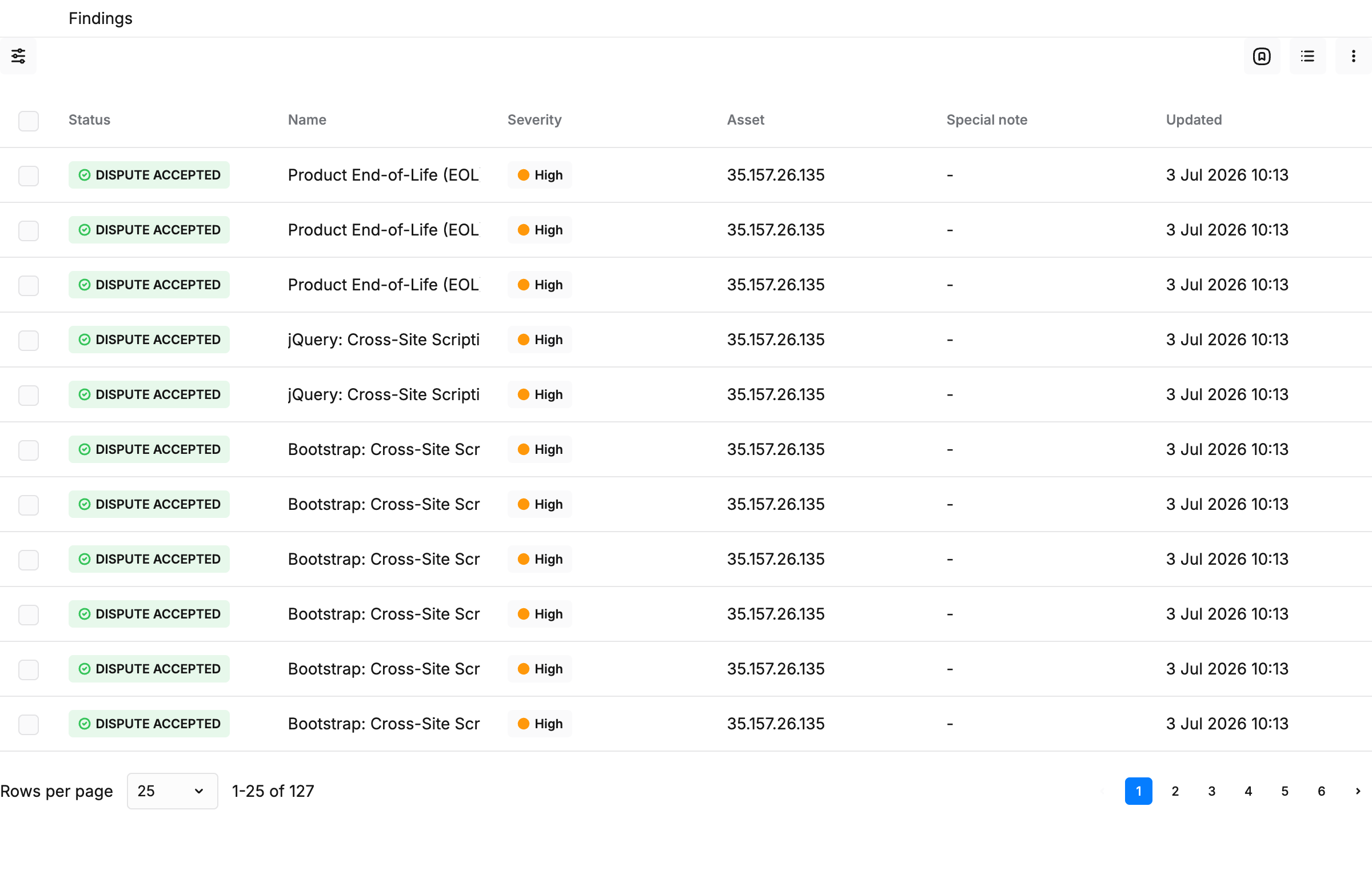
Table Columns
|
Column |
Description |
|---|---|
|
Status |
The finding status. See the Finding Statuses section. |
|
Name |
The name of the finding. |
|
Severity |
The severity with the CVSS score. |
|
Asset |
The asset the finding was detected on. |
|
Special note |
The ASV special note attached to the finding. Response needed is shown when a response is still required. A lock icon is shown when the response is marked secure. A dash is shown when the finding has no special note. |
|
Updated |
When the finding was last updated. |
The table supports saved view templates; see View Templates.
A Response needed column is available in the column picker to filter findings that still need an answer.
Finding Statuses
Status values are displayed exactly as the system defines them.
|
Status |
Meaning |
|---|---|
|
NON COMPLIANT |
The finding is failing. Remediate and rescan, or dispute it. |
|
COMPLIANT |
The finding passes and counts toward compliance. |
|
DISPUTED |
A dispute has been raised and awaits an ASV decision. |
|
DISPUTE DETAILS NEEDED |
The ASV requested more information. Provide the details and dispute again. |
|
DISPUTE REJECTED |
The ASV rejected the dispute. The finding remains failing; it is possible to remediate or to raise a new dispute with stronger evidence. |
|
DISPUTE ACCEPTED |
The ASV accepted the dispute. The finding counts as compliant for scope completion. |
A scope reaches the COMPLIANT status only when every finding is COMPLIANT or DISPUTE ACCEPTED and every special note has been answered.
Finding Details
Clicking a finding opens the detail panel on the right side of the window. The panel has two tabs, Details and Comments, and the finding status and name in the header.
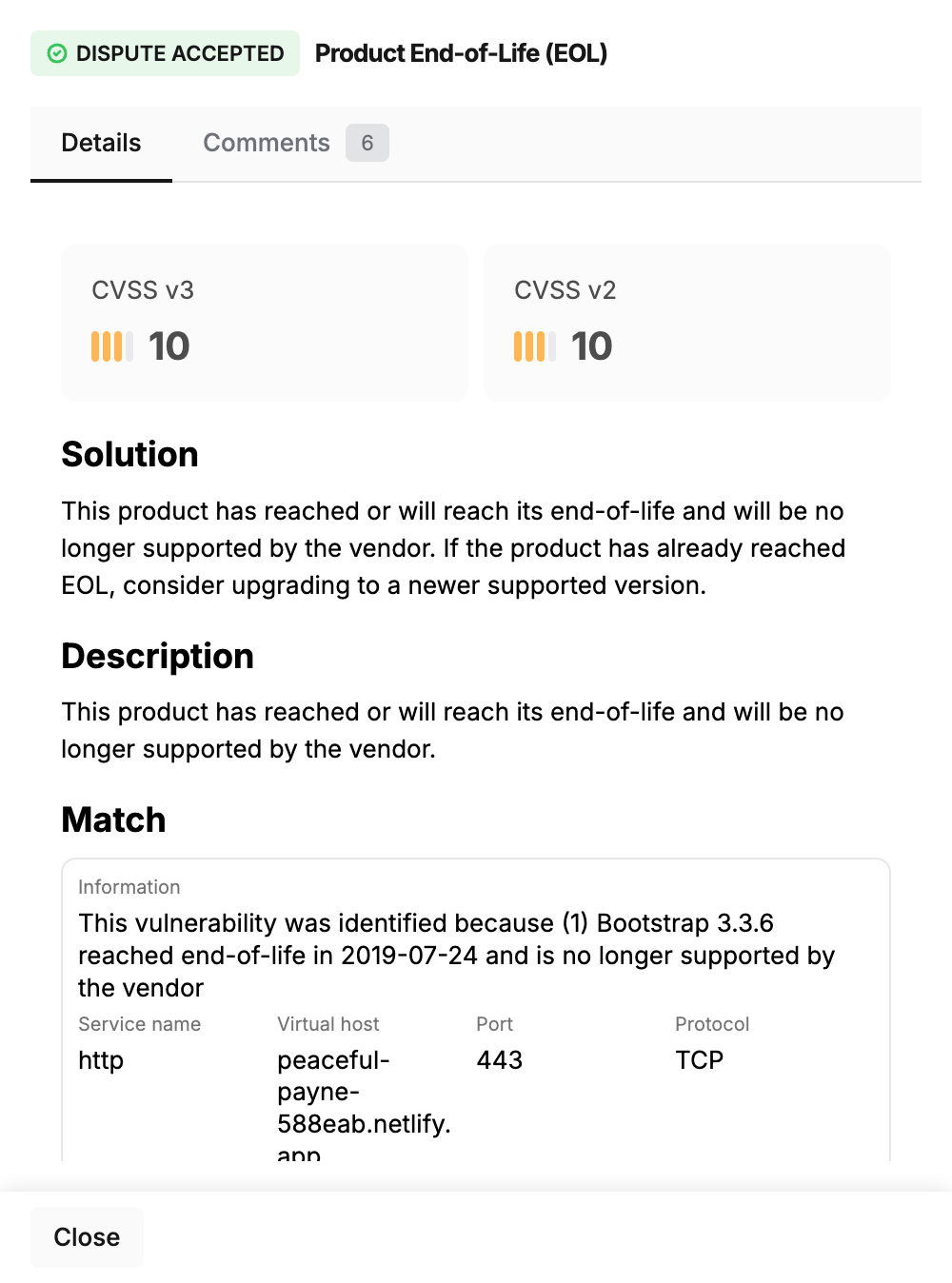
Details Tab
The Details tab contains the full finding information: overview, solution, and classifications. When the finding carries an ASV special note, a PCI special note card is displayed at the top; see the Special Notes section.
Comments Tab
The Comments tab holds the dispute conversation and any other comments on the finding. See the Disputes section. The tab shows a count of the messages.
Special Notes
The compliance scan attaches special notes to findings that match specific conditions defined by the PCI ASV Program Guide, for example detected remote access software, load balancers, point-of-sale software, or directory browsing. A special note is a standardized ASV notice; the customer is required to respond to it, declaring how the noted item is implemented and secured in the environment.
To respond to a special note:
-
Click the finding to open the detail panel. The PCI special note card is displayed on the Details tab.
-
Enter the response in the Special note field, describing the implementation and any compensating controls.
-
Toggle Secure to declare the response.
-
Click the Save special note button.
The response is saved and shown with the finding.
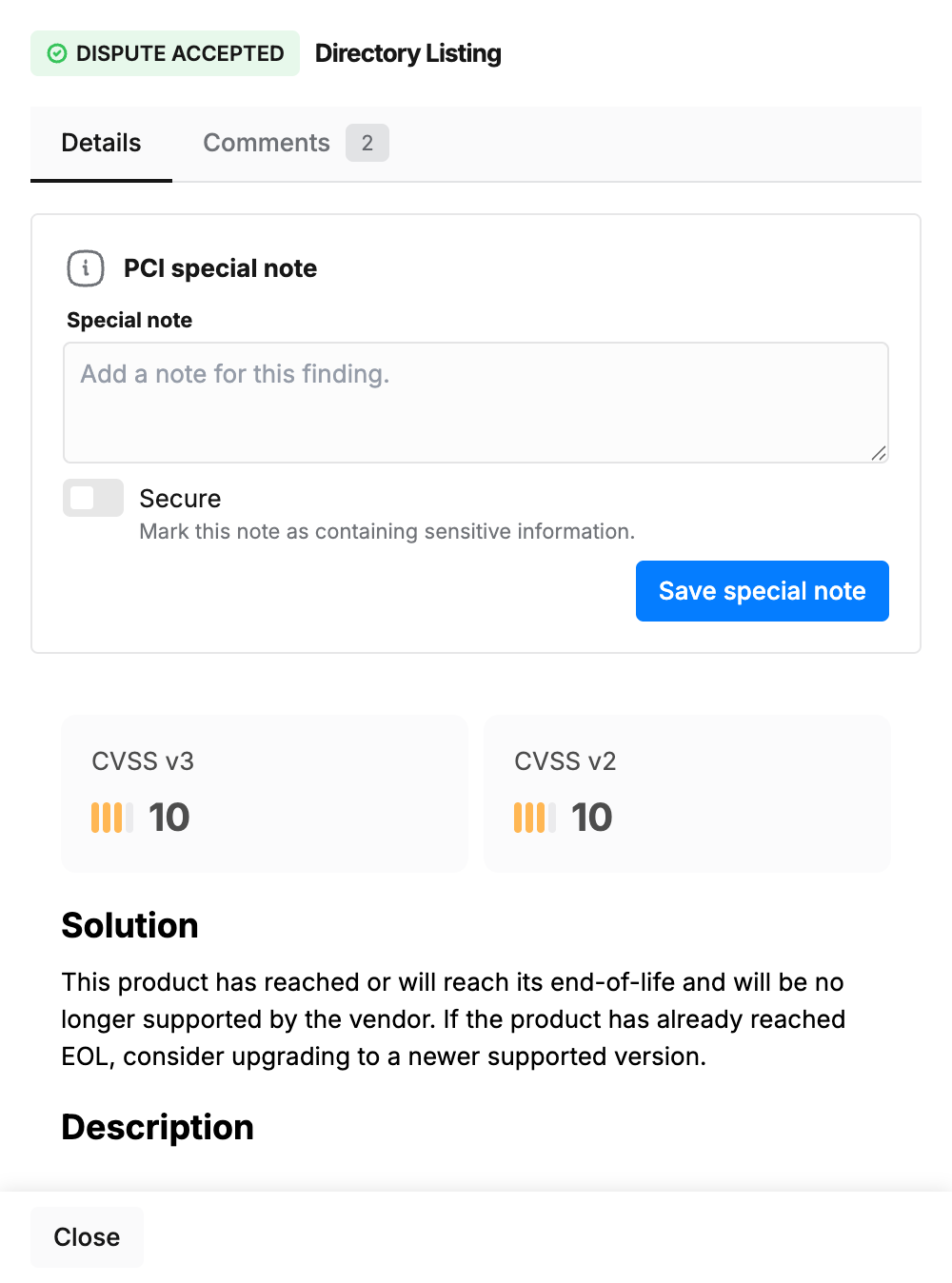
Every special note in the scope must have a saved response with the Secure toggle enabled before the scope reaches the COMPLIANT status. A note cannot be saved empty. The special note card is displayed only on findings the scan attached a note to.
Disputes
When a failing finding does not apply to the environment - for example a false positive, or a risk mitigated by compensating controls - raise a dispute. Disputes are reviewed by the Outpost24 ASV team, and every step of the exchange is recorded in the finding's comment thread.
Raising a Dispute
A dispute can be raised on findings with the status NON COMPLIANT, DISPUTE REJECTED, or DISPUTE DETAILS NEEDED.
-
Click the Create dispute button in the finding detail header. The button is available only on disputable findings.
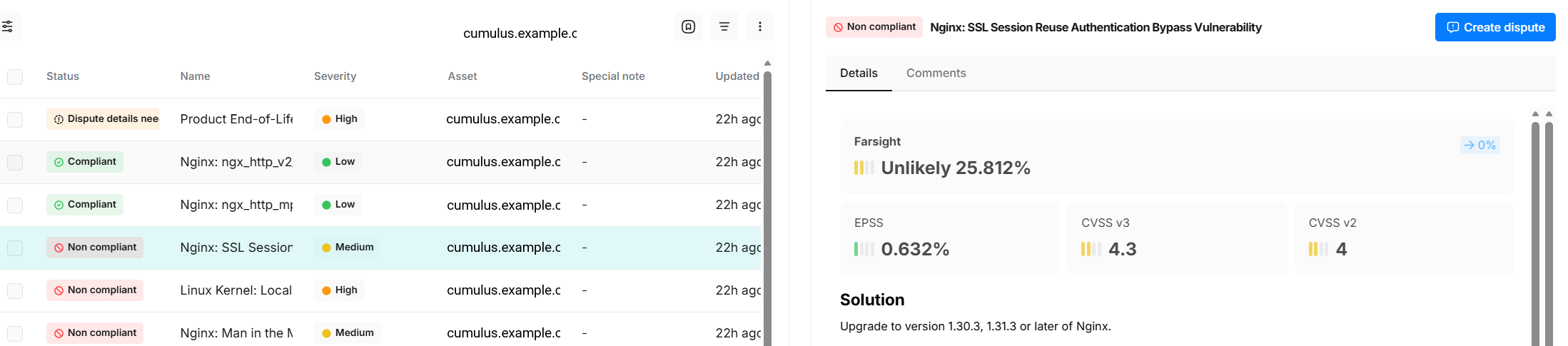
Or:
-
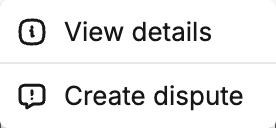
Right-click the finding in the table and select Create dispute from the context menu.
Then:
-
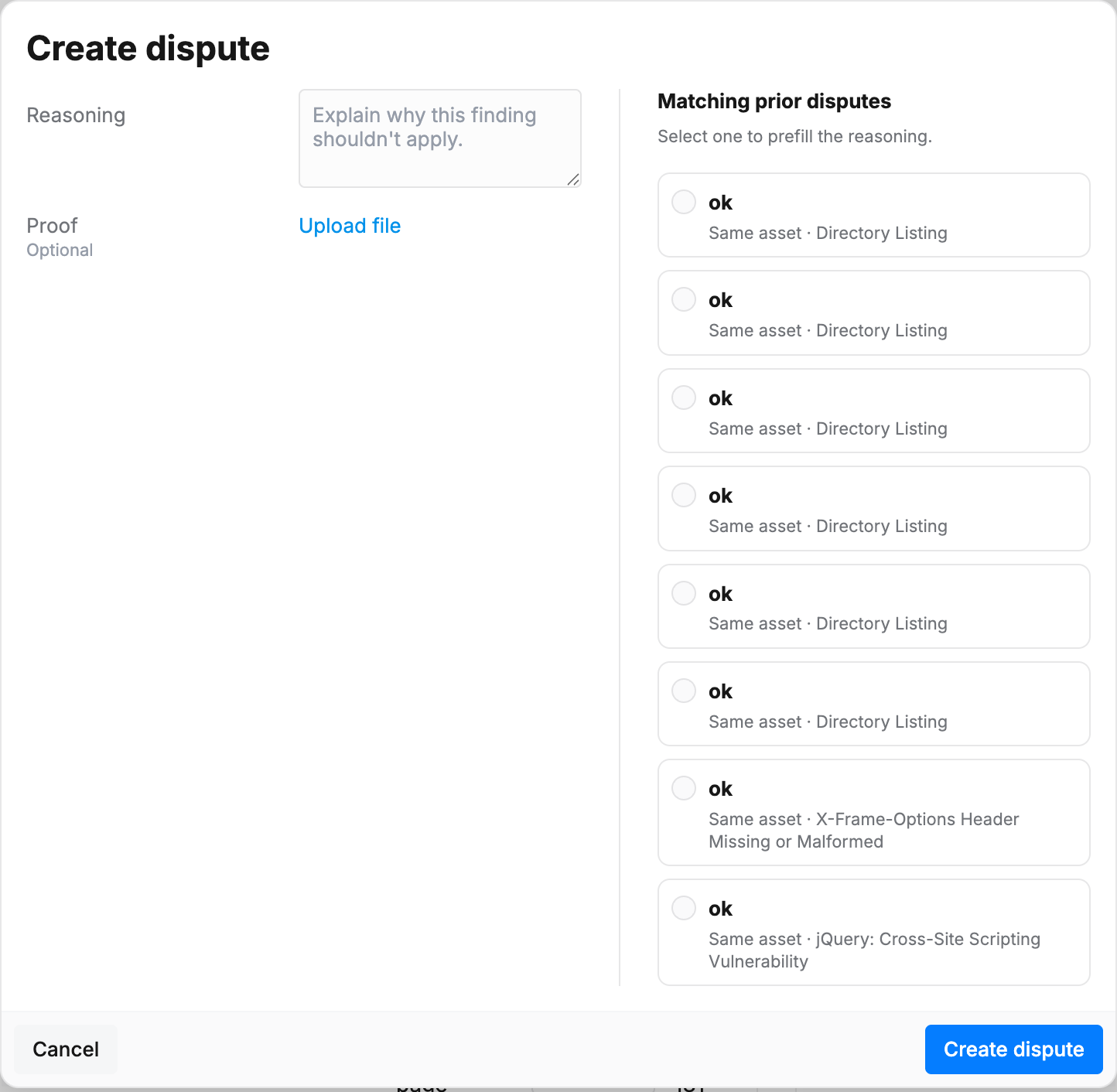
Enter the Reasoning, explaining why the finding does not apply. This field is mandatory.
-
Optionally, attach proof files such as configuration screenshots, scan evidence, or policy documents.
-
Click the Create dispute button.
The finding status changes to DISPUTED and the reasoning is posted as the first message of the dispute thread.
Matching Prior Disputes
When other findings on the same asset in the same environment already carry disputes, the dialog shows a Matching prior disputes panel. Each card is a previous dispute reasoning; a card marked Exact match comes from the same check on the same asset. Selecting a card prefills the reasoning, so recurring disputes do not need to be rewritten each cycle. The prefilled text is editable before submitting.
Disputing Multiple Findings
To dispute several findings at once:
-
Select the findings by checking the boxes on the left hand side.
-
Click the Create dispute button in the toolbar that is displayed above the table.
-
Enter the reasoning and optionally attach proof files.
-
Click the Create dispute button.
One dispute per selected finding is submitted, all with the same reasoning and files. Findings that are not in a disputable status are rejected individually and reported.
The Dispute Thread
The Comments tab of the finding detail shows the dispute conversation first, then any other comments, in chronological order. Messages that raise a dispute carry a Dispute badge, and attachments are listed under the message that provided them; click an attachment to download it.
The ASV team responds with one of three decisions, each posted as a message in the thread:
|
Decision |
Finding status |
What to do |
|---|---|---|
|
Accepted |
DISPUTE ACCEPTED |
Nothing. The finding counts as compliant for scope completion. |
|
Details requested |
DISPUTE DETAILS NEEDED |
Read the request in the thread, then raise the dispute again with the requested information or attach the requested evidence. |
|
Rejected |
DISPUTE REJECTED |
Remediate the finding and rescan, or raise a new dispute with stronger evidence. |
Use the Reply field on a conversation to answer the ASV team without changing the finding status. Use the Add a comment field at the bottom of the tab to add a comment that is not a dispute.
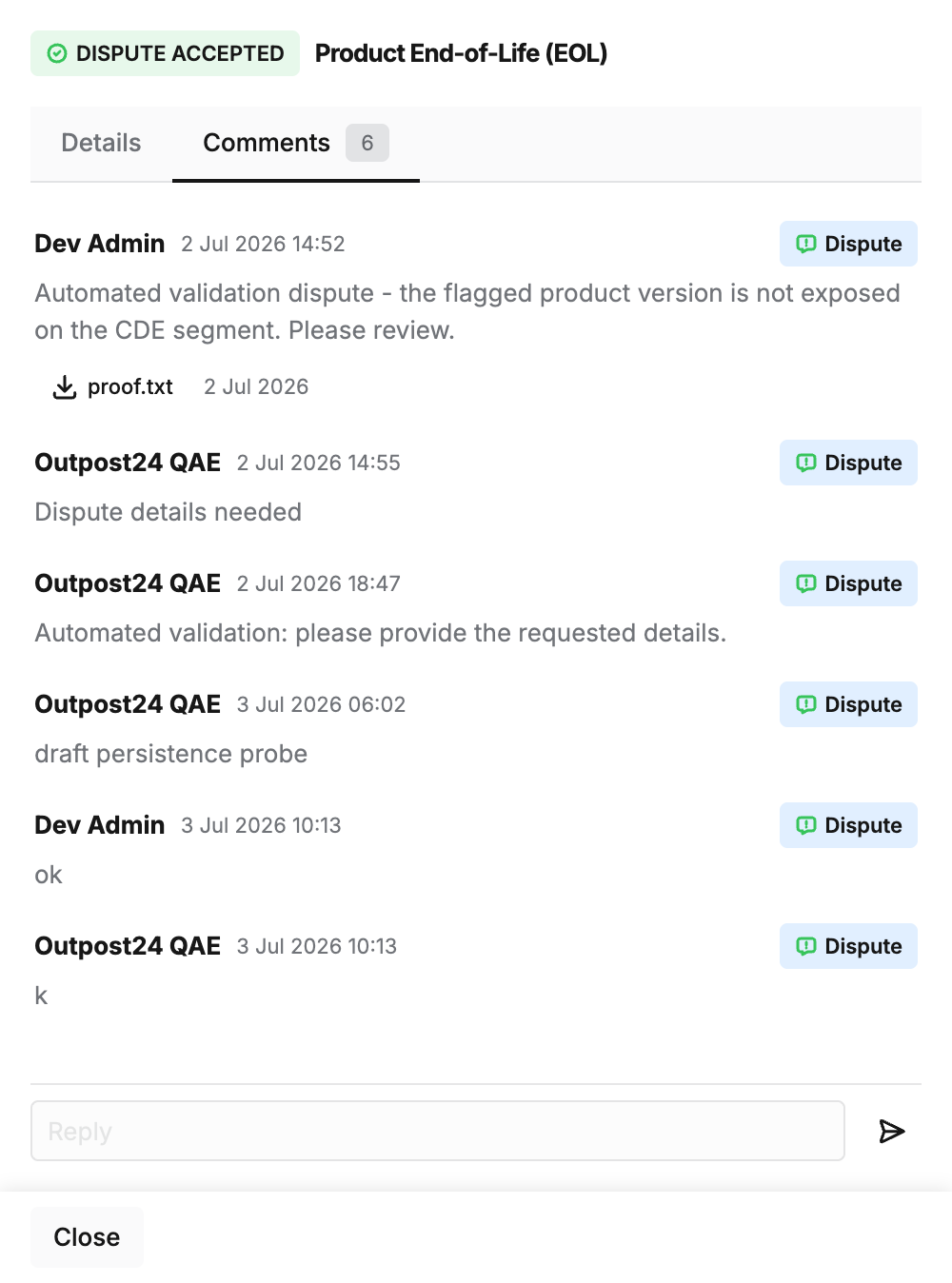
Each finding has one dispute thread. Later disputes and decisions on the same finding continue the same conversation. Disputes and their statuses are preserved when the scope is rescanned.
Once the scope is completed, its findings, special notes, and disputes are locked and no further dispute activity is possible.
Related Articles